
Update 28.1.2637.891 Published September 11, 2026
Periodically, Sparkrock may publish updates between releases. This update replaces previously released updates. All updates are cumulative.
Highlights
To view the major accomplishments in this release, select the links:
New features and changes
Update 28.1.2637.891 for mySparkrock 2026 release wave 1 introduces the following new features and changes.
Expense claim lifecycle, field visibility, and tooltips
This release adds a paid status for reimbursed expense claims, a clearer delete confirmation, the capability to hide expense form fields per expense type, and tooltip guidance on custom expense fields.
Paid status for reimbursed expense claims
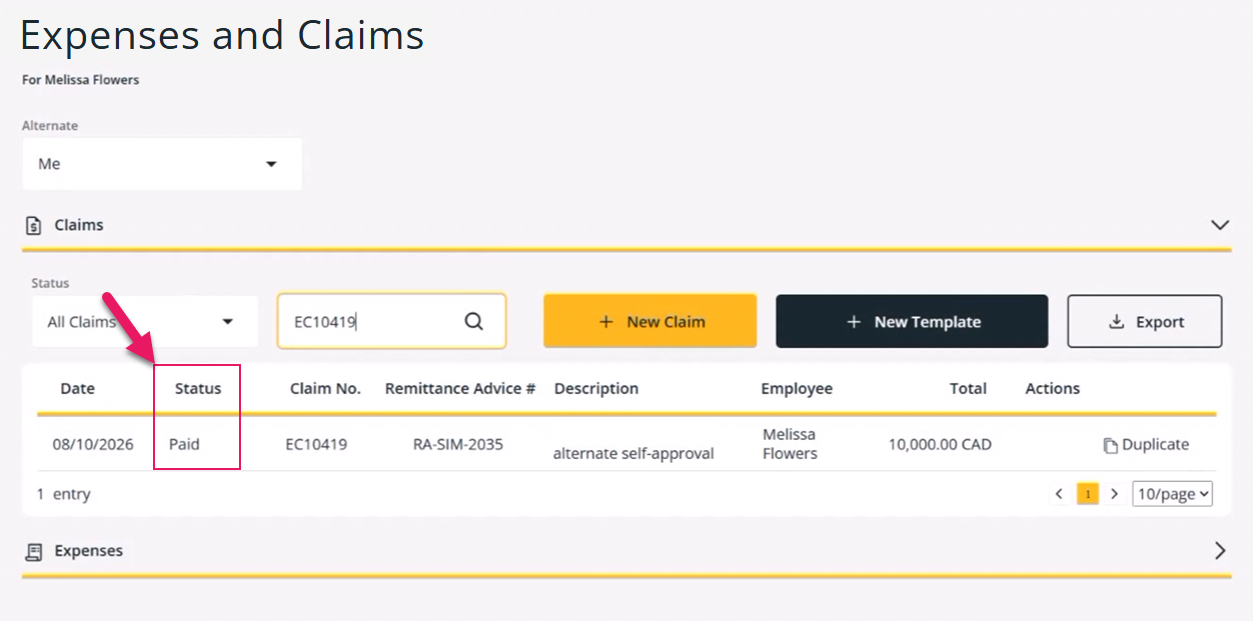
When a payment is remitted to you for an expense claim, the claim's status changes to Paid.
You can see this status in the following places:
On the Expenses and Claims page, in the Status column, alongside the remittance advice number.
On the Claim page, in the progress stepper after Completed, as the sixth and final step.
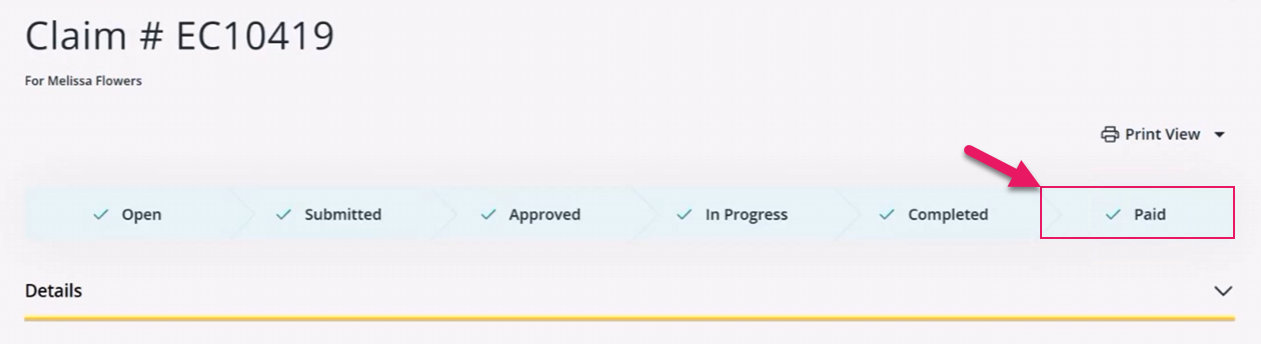
The step stays gray until the payment is remitted, and then turns green.
Clearer expense claim delete confirmation
When you delete an expense claim, every expense attached to that claim is also deleted. This behavior is unchanged, but the following confirmation message now states the behavior explicitly:
Are you sure you want to delete this claim? All expenses attached to this claim will also be permanently deleted. This cannot be undone.
You see this message whether you delete the claim from your claims list or from within the claim itself.
Hide Round-trip and Unit of Measure fields per expense type
Your administrator can now hide the Round-trip and Unit of Measure fields on the expense entry form, per expense type, by turning on Hide Round Trip or Hide Unit of Measure for an expense type in Sparkrock Finance. Learn more in Hide expense type fields in mySparkrock.
When either setting is turned on for an expense type, mySparkrock does not display the corresponding field at all when you select that expense type. Both settings are turned off by default, so the form is unaffected until your administrator configures them. Changes made in Sparkrock Finance may take a few minutes to appear in mySparkrock.
Tooltips on custom expense fields
If your organization uses custom fields for expense claims in the Required Information tab of an expense claim, a field can now show an information icon.

Hovering over the icon displays guidance text that your administrator entered for that field. A field with no guidance text configured shows no icon.

Your administrator sets up this guidance text in Sparkrock Finance by selecting the expense type and specifying the guidance in Tooltip Text for the applicable attribute. Learn more in Set up expense attribute fields.
Learn more
- Expenses and claims
MSR-2036, MSR-2037, MSR-2038, MSR-2039, MSR-2052, MSR-2054
Tax area code on expense claims
This release adds a Tax Area Code field to the General section of an expense claim, so that you can set the tax jurisdiction for the whole claim instead of setting the jurisdiction on each expense line individually.
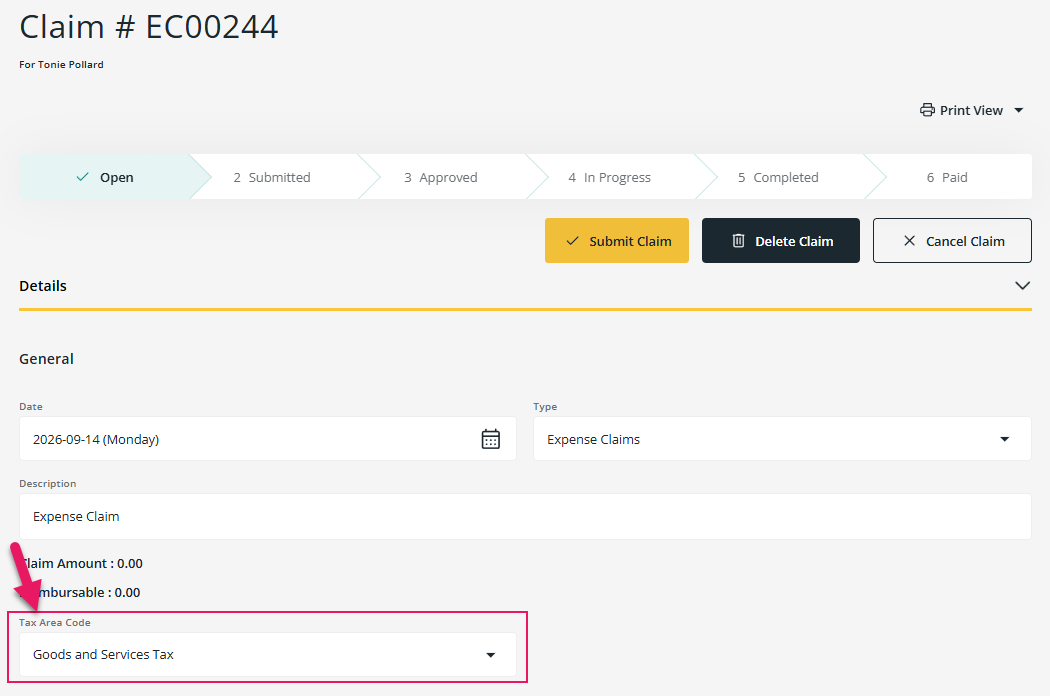
Your administrator turns this on in Sparkrock Finance, by turning on Tax Area Code on Claim Header on the Purchases & Payables Setup page. Learn more in Set up Tax Area Code on expense claim header.
When this setting is turned off, the Tax Area Code field does not appear on the expense claim. The field's label follows the Tax Area Code Caption that your administrator has configured. If none is configured, the field is labeled Tax Area Code.
Tax Area Code is editable while the claim is in Open status, and read-only for all other statuses. The dropdown lists only the tax areas that your administrator has made available for expense claims.
When you change Tax Area Code on a claim that has one or more expense lines, the Change Tax Area Code dialog box appears with the following message:
Changing the Tax Area Code will update all lines on this claim. Do you want to continue?
If you select Yes, all lines on the claim are updated to the new tax area code, and tax totals recalculate. If you select No, the field reverts to its previous value and no lines are changed. If the claim has no expense lines, Tax Area Code saves immediately, with no confirmation.
Learn more
- Expenses and claims
MSR-2063, MSR-2064, MSR-2065
Hide benefit plans from profile
This release adds the capability for your administrator to hide a specific benefit plan from the Benefits section of your Profile page in mySparkrock, so that administrative or internal-only benefit plans are not shown to employees.
Your administrator controls this per benefit plan in Sparkrock Impact, by turning off Show on mySparkrock on the benefit plan record. Learn more in Show on mySparkrock field for benefit plans and Set up benefit plans.
When Show on mySparkrock is turned off, the plan is not shown in the Benefits section, even when the plan is assigned to you. When Show on mySparkrock is turned on, mySparkrock displays the plan, which is the same behavior as previous releases. The Show on mySparkrock checkbox is selected by default for all existing benefit plans, so nothing changes until your administrator clears the checkbox for a specific plan.
This setting only affects whether a plan is shown on this page. It does not change the underlying benefit plan assignment.
Learn more
- Profile
MSR-1884
Problems that are resolved in this update
The following problems are resolved in this update.
| Description | |
|---|---|
| On the Purchase Requisition and Payment Request pages, the Location field may display locations that are not configured for your user. If you save a request while an incorrect location is selected, you may no longer be able to view or edit that request. Also, on the Purchase Order and Purchase Invoice pages, the Location filter may offer locations that are not configured for your user. To resolve these problems, mySparkrock now displays only the locations that are configured for your user. |
|
| On the Financial Analysis page, when you drill down into a Net Change amount, you must scroll horizontally to see the Vendor column. To resolve this problem, mySparkrock now displays the Vendor column immediately after the Description column. |
|
| In preparation for a future mySparkrock release, a non-visible change is required to the sign-in process. |
|
When you save a purchase requisition or payment request as a template, the following problems exist:
|
Related information
Feedback
To send feedback about this page, select the following link: