
Version 27.0 for mySparkrock 2025 release wave 2 release notes Published October 10, 2025
These release notes include supplemental information about version 27.0 for mySparkrock 2025 release wave 2.
Highlights
To view the major accomplishments in this release, select the links:
Compatibility with version 27.0 for Sparkrock Impact or Sparkrock Finance 2025 release wave 2
Improved visibility of future-dated absence requests and attendance balances
Payment request and purchase requisition submit button improvements
New features and changes
Version 27.0 for mySparkrock 2025 release wave 2 introduces new features and enhancements to existing functionality.
Compatibility with version 27.0 for Sparkrock 2025 release wave 2
mySparkrock has been updated to be compatible with version 27.0 for Sparkrock 2025 release wave 2.
Expense claim custom fields
This release introduces custom fields for expense claims to help organizations capture data specific to their reporting or operational needs.
When creating an unassigned expense, the custom fields appear on the Expense page, on the Custom Fields tab.
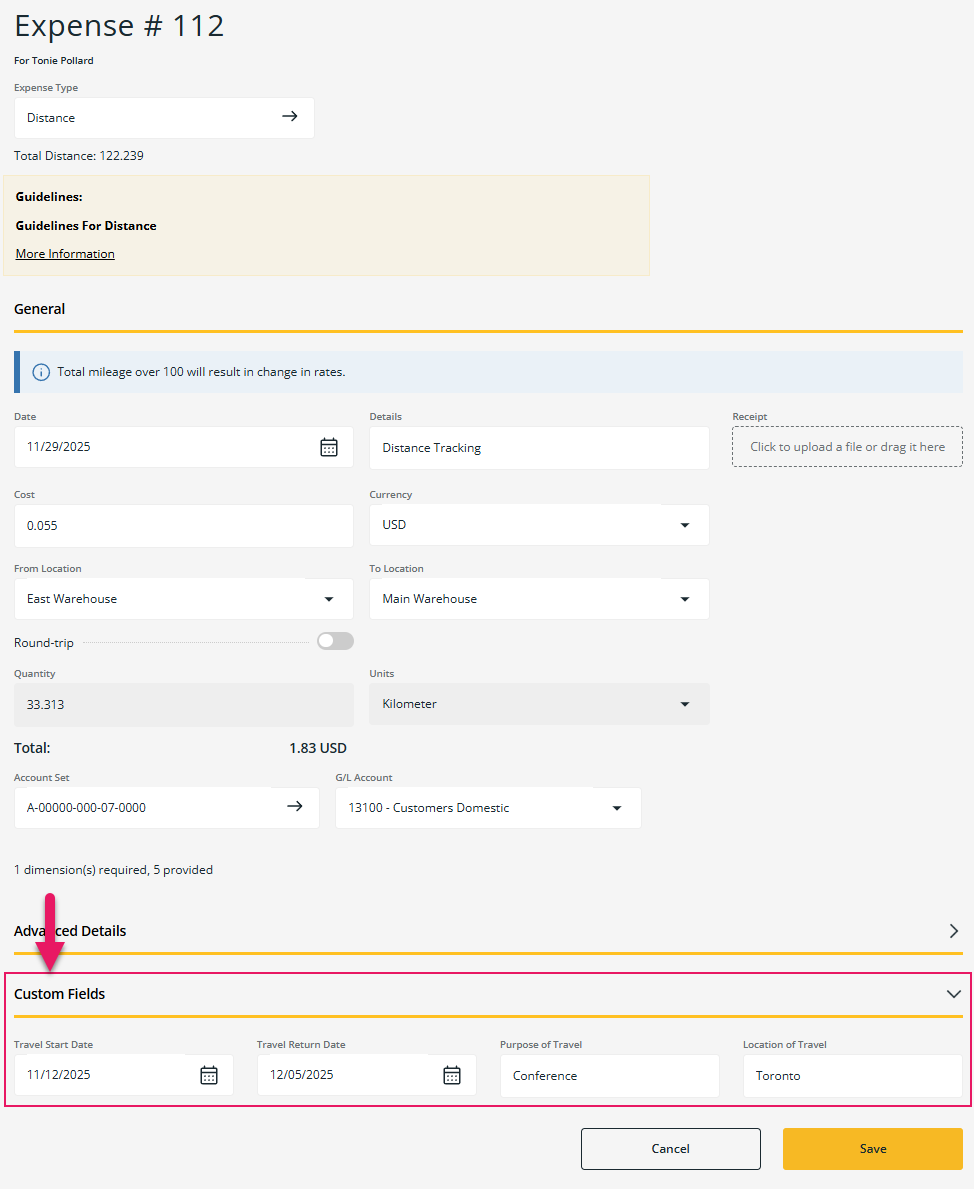
When creating a claim, the custom fields appear on the Expense Details page, on the Custom Fields tab.
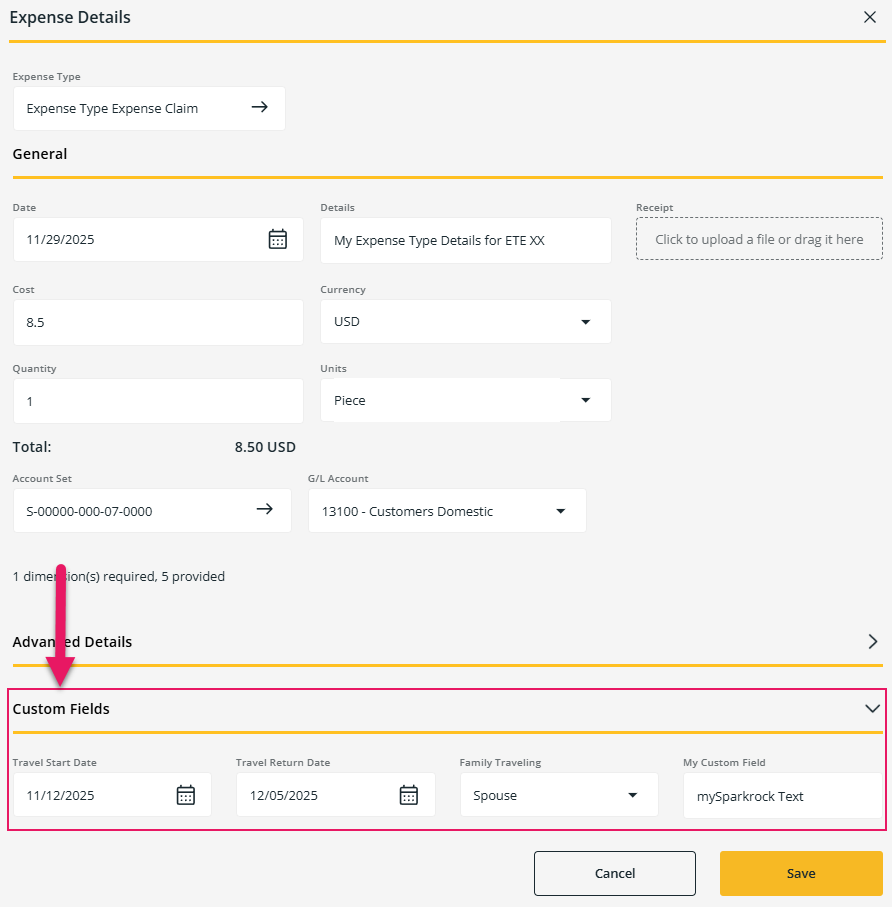
The custom expense fields are configured in Sparkrock Impact or Sparkrock Finance.
To learn more about setting up this feature in Sparkrock Impact, go to Custom fields for expense claims.
To learn more about setting up this feature in Sparkrock Finance, go to Custom fields for expense claims.
Remittance Advice # field on Expenses and Claims page
The Expenses and Claims page now include a Remittance Advice # field for improved reconciliation and transparency.
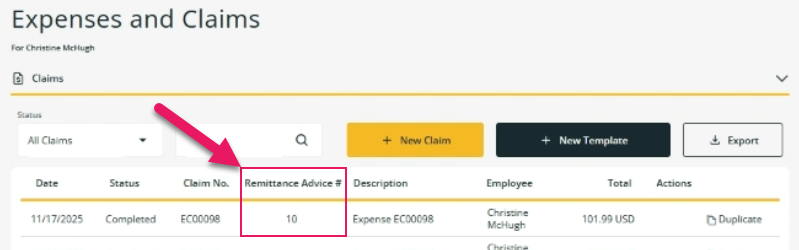
The Remittance Advice # field specifies the remittance advice number that is linked to the expense claim. The field is visible only after the remittance advice is created in Sparkrock Impact or Sparkrock Finance.
To learn more about this feature in Sparkrock Impact, go to Remittance Advice No. field on expense claims.
To learn more about this feature in Sparkrock Finance, go to Remittance Advice No. field on expense claims.
New mileage rate functionality for distance-based expenses
This release introduces new mileage rate functionality for distance-based expenses.
Previously, users had to know and manually apply the correct mileage rate when submitting expense claims. Because mileage rates can change periodically and vary by scenario, this manual process increased the risk of errors, inconsistencies, and compliance issues.
The new functionality automates the selection of mileage rates based on effective dates. This enhancement ensures that mileage reimbursements are calculated accurately, consistently, and in compliance with organizational reimbursement policies.
There are no changes to the mySparkrock interface for this feature. The logic of the Date and Cost fields on the Expense and Claim pages has been updated to automatically set the mileage rate based on the Sparkrock Impact or Sparkrock Finance configuration.
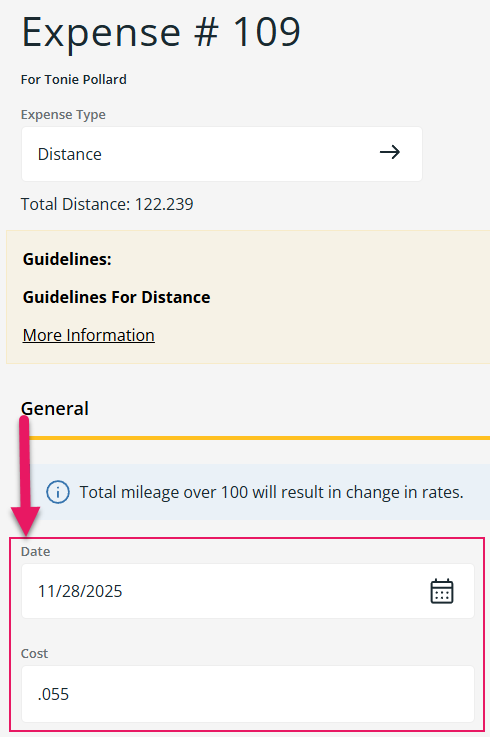
To learn more about setting up this feature in Sparkrock Impact, go to New mileage rate functionality for distance-based expenses.
To learn more about setting up this feature in Sparkrock Finance, go to New mileage rate functionality for distance-based expenses.
Hide assignment hour fields
This release introduces support to control the visibility of assignment hour fields based on the configuration in Sparkrock Impact. This functionality includes a global control and an HR position-level control. To learn more about the Sparkrock Impact configuration for this feature, go to Hide assignment hour fields in mySparkrock.
When the global setting is turned on, assignment hours are hidden for all employees in mySparkrock. When the global setting is turned off, the position-level setting determines whether assignment hours are displayed.
Global control
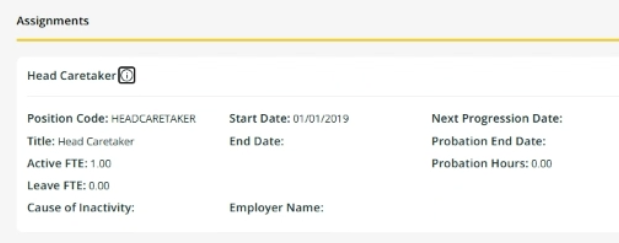
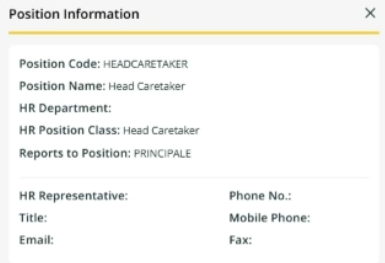
When the global control is turned on in Sparkrock Impact:
The Hours/Week and Hours/Day fields are hidden on the employee's Profile page, on the Assignments tab.
The Default Hours/Week and Default Hours/Day fields are hidden on the Position Information page.
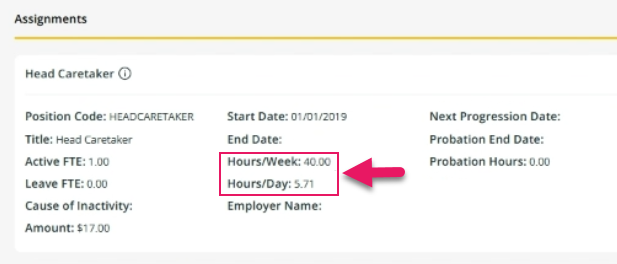
When the global control is turned off in Sparkrock Impact:
The Hours/Week and Hours/Day fields appear on the employee's Profile page, on the Assignments tab.
The Default Hours/Week and Default Hours/Day fields appear on the Position Information page.
MSR-1226 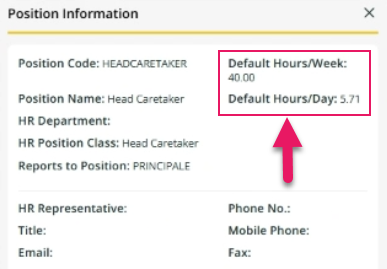
Position-level control
When the position-level control is turned on for a position in Sparkrock Impact:
The Hours/Week and Hours/Day fields are hidden on the employee's Profile page, on the Assignments tab for the position.
The Default Hours/Week and Default Hours/Day fields are hidden on the Position Information page for the position.
When the position-level control is turned off for a position in Sparkrock Impact:
The Hours/Week and Hours/Day fields appear on the employee's Profile page, on the Assignments tab for the position.
The Default Hours/Week and Default Hours/Day fields appear on the Position Information page for the position.
MSR-1226
Improved visibility of future-dated absence requests and attendance balances
This release improves how future-dated absence requests and attendance balances are displayed, ensuring that requests that span into a future year appear correctly.
Previously, an employee could successfully submit an absence request for dates in a future year, but the request and attendance balances did not appear on the Attendance and Requests page until the next year’s attendance balances were loaded. This behavior caused confusion and made it difficult for employees and administrators to review upcoming absences.
With this update, future-dated absence requests and attendance balances are displayed consistently, even when requests span into a future year.
Key changes
- Future-dated absence requests and attendance balances that extend into a future year appear on the Attendance and Requests page.
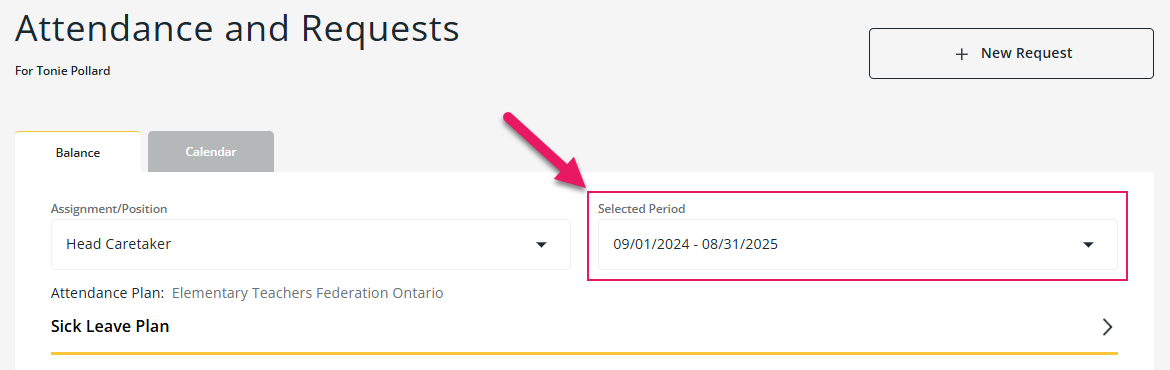
- The Attendance and Requests page includes a Selected Period field that determines which period’s absence requests and attendance balances are displayed.
Interface changes
On the Attendance and Requests page, there is a Selected Period field that determines which absence requests and attendance balances are displayed.
Learn more
To learn more about attendance and requests, go to Attendance and requests.
Improved account set lookup filtering on expenses
This release improves how the Account Set lookup on expenses filters available account sets.
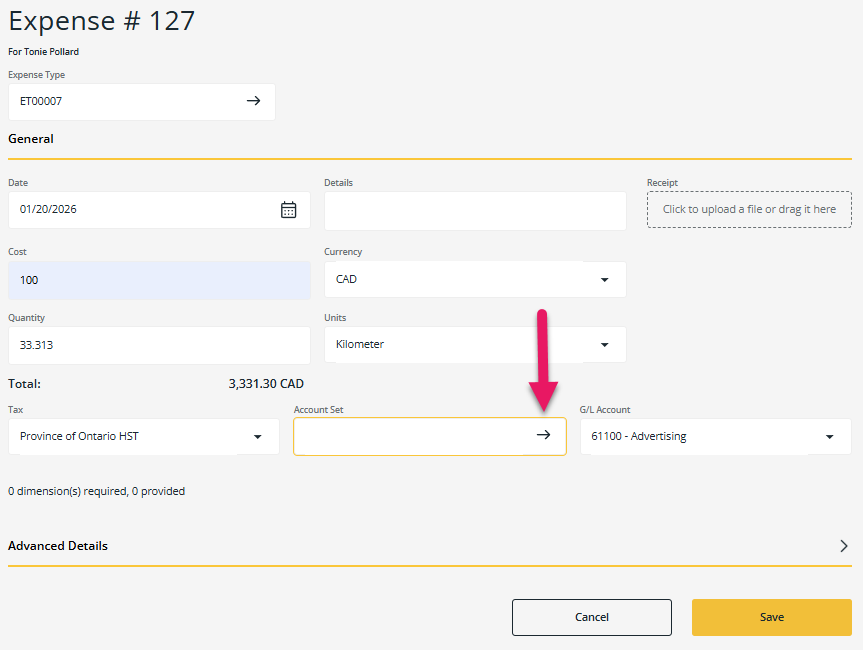
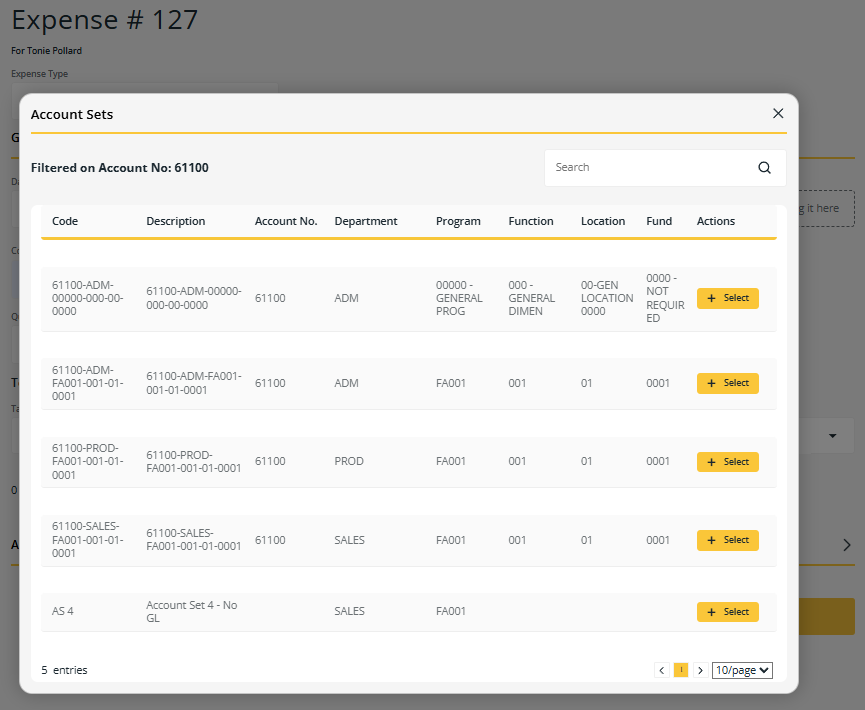
Filtering is based on whether a general ledger (G/L) account is pre-selected on the expense and whether the Validate Account setting is enabled for expense claim documents on the Dimension Validation Setup page in Sparkrock Finance.
In all cases, the lookup includes only account sets that are available based on the following configuration:
- The Security Filters FastTab setup on the mySparkrock User Setup Card and mySparkrock User Profile Card pages in Sparkrock Finance.
- The Available on Finance Requests checkbox is selected on the Account Sets page in Sparkrock Finance.
How account set filtering works
The behavior of the Account Set lookup depends on whether the Validate Account checkbox is selected and whether a G/L account is pre-selected.
When the Validate Account checkbox is selected for expense claim documents
- If a G/L account is pre-selected, the lookup shows only unblocked account sets that are linked to that G/L account.
- If no G/L account is pre-selected, the lookup shows only unblocked account sets that have a G/L account linked.
When the Validate Account checkbox is clear for expense claim documents
- If a G/L account is pre-selected, the lookup shows unblocked account sets that are linked to the G/L account, as well as unblocked account sets with no G/L account.
- If no G/L account is pre-selected, the lookup shows all unblocked account sets, including account sets with no G/L account.
MSR-1387, MSR-1336
Payment request and purchase requisition submit button improvements
On the Payment Request and Purchase Requisition pages, the Submit button is now always enabled. Previously, the button was disabled until all required conditions were met, with no indication of what needed to be addressed.
When you select Submit and one or more conditions are not met, mySparkrock now displays an error message for each condition that requires attention. You cannot complete the submission process until all conditions pass.
Known problems
The following sections include information about the known problems in version 27.0 for mySparkrock 2025 release wave 2.
mySparkrock users cannot view data sets
mySparkrock users cannot view data sets because the MYSPARKROCK user is missing permission sets.
Workaround
To resolve this problem, perform the following steps:
In Sparkrock Impact or Sparkrock Finance, choose
 , enter microsoft entra applications, and then choose the related link.
The Microsoft Entra Applications page opens.
Select the row that has a Description of mySparkrock, and then on the action bar, choose Manage > Edit.
The Microsoft Entra Application Card page opens.
On the User Permission Sets FastTab, add the records that appear in the following table.
Permission Set Name Type Extension Name SPKFA ANALYSIS, EDIT SR365 Create Fin. Analysis System Financial Analysis SPKFA ANALYSIS, VIEW SR365 View Financial Analysis System Financial Analysis SPKFA DATA SET, EDIT SR365 Create data sets System Financial Analysis SPKFA DATA SET, VIEW SR365 View data sets System Financial Analysis
To add a record, choose Manage > New Line, and then specify values for fields as required.
Re-open button is missing for a submitted expense claim in mySparkrock
The Re-open button may disappear from a submitted expense claim in mySparkrock. This issue occurs when a MYSPARKROCK user is not set up in Sparkrock Impact or Sparkrock Finance, on the User Setup page.
Workaround
In Sparkrock Impact or Sparkrock Finance, perform the following steps:
Choose
, enter user setup, and then choose the related link.The User Setup page opens.
On the action bar, choose New.
A new row appears.
In User ID, specify MYSPARKROCK.
Assign all permissions to the user.
For example, select the checkboxes for the following fields:
- A/P Batch Admin
- Allow A/P Batch Creation
- Allow A/P Batch Auditing
- Allow A/P Batch Deletion
- Allow User to Access Compensation Data
- HR Request Reversal Allowed
Related information
What's new
Version 27.0 for Sparkrock Impact 2025 release wave 2 release notes
Version 27.0 for Sparkrock Finance 2025 release wave 2 release notes
Feedback
To send feedback about this page, select the following link: