
Update 28.1.2626.747 Published June 26, 2026
Periodically, Sparkrock may publish updates between releases. This update replaces previously released updates. All updates are cumulative.
Highlights
To view the major accomplishments in this release, select the links:
New features and changes
Update 28.1.2626.747 for mySparkrock 2026 release wave 1 introduces the following new features and changes.
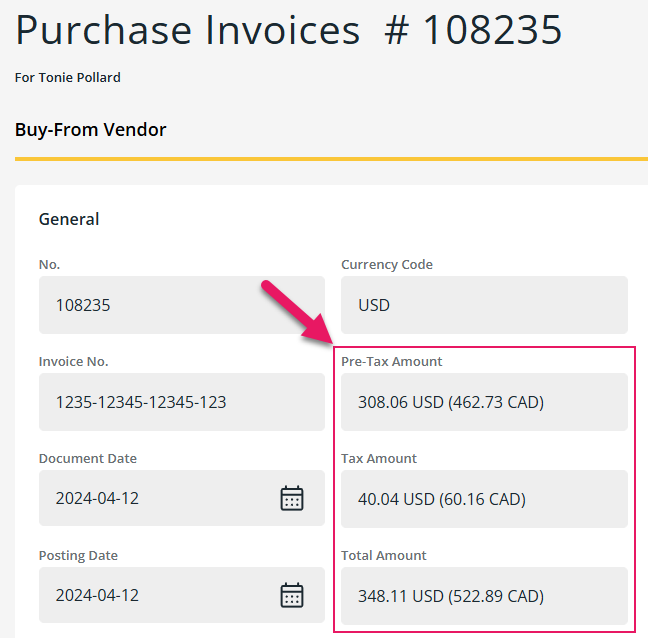
Purchase invoice currency code and amount display
On the Purchase Invoices page, monetary amounts now display with a currency code label. The behavior depends on the invoice currency:
- For local currency invoices, each amount displays with the local currency code, for example, 5,000.00 CAD.
- For foreign currency invoices, both the foreign currency (FC) amount and the local currency (LCY) equivalent are displayed with distinct currency code labels, for example, 308.06 USD and 462.73 CAD.
MSR-1890, MSR-1891
Purchaser Code on purchase requisition and payment request lines
A new Purchaser Code field is now available on expense type and item lines on the Purchase Requisition and Payment Request pages.
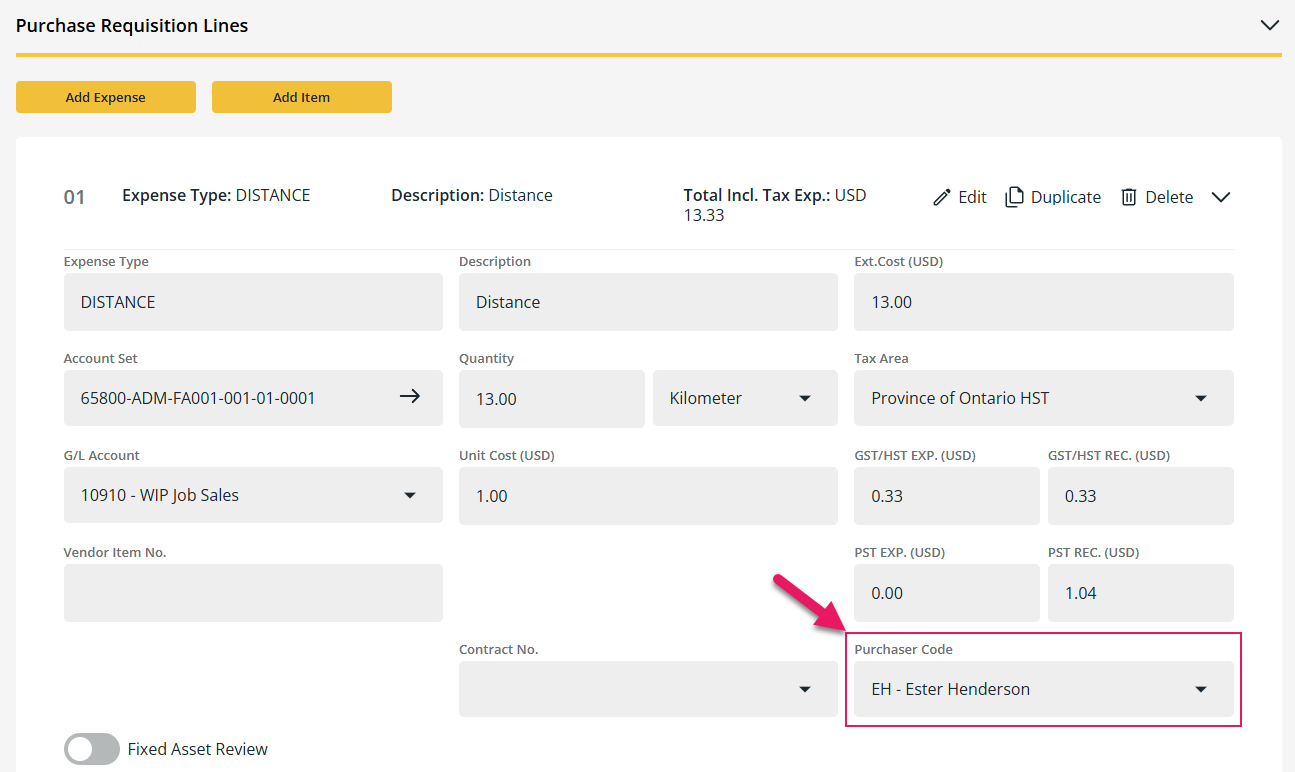
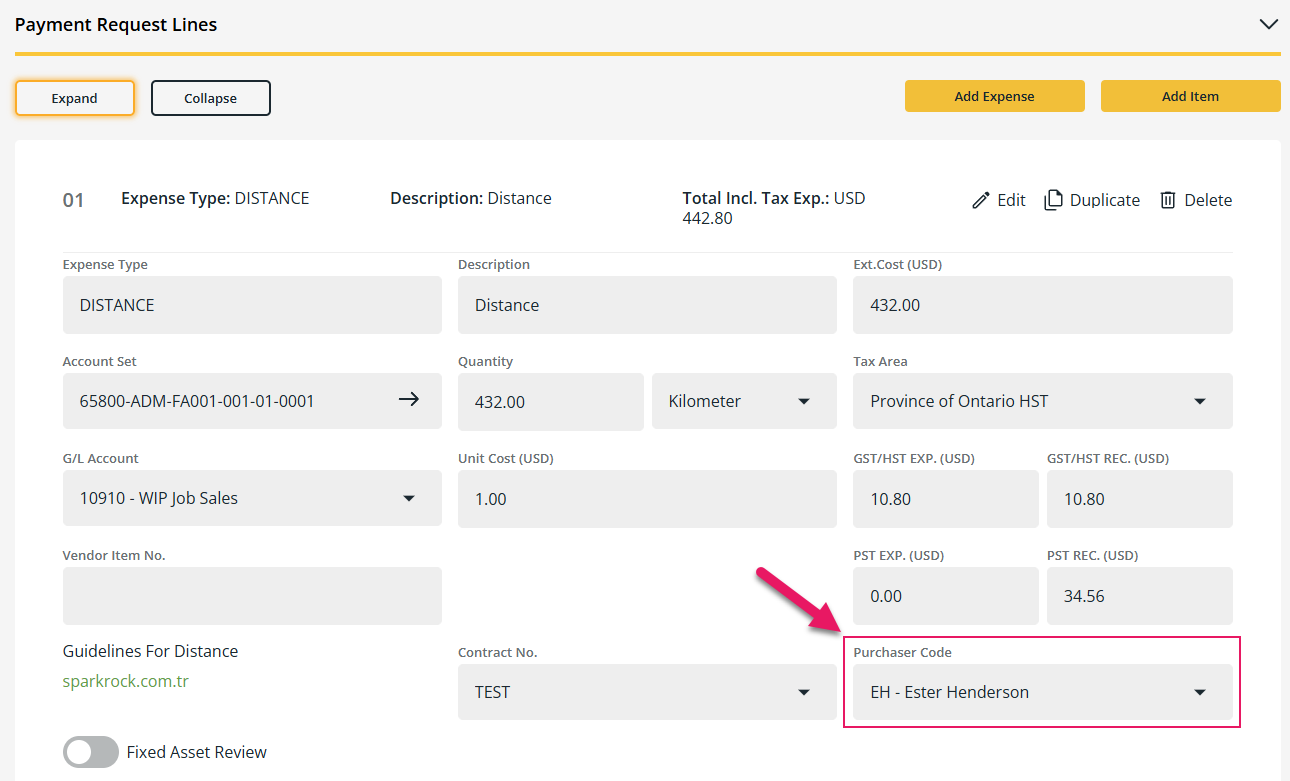
The field displays values in Code - Name format, for example, EH - Ester Henderson.
When an expense type that has a Purchaser Code pre-configured is selected on a line, the Purchaser Code field is automatically populated with that value.
When Prevent Purchaser Code Edit is turned on for the expense type on the Expense Type Card page in Sparkrock Finance, the Purchaser Code field is read-only and cannot be changed. When the option is turned off, you can select any value from the dropdown list.
The Purchaser Code value is saved with the line and displayed when an existing document is opened.
Contract field conditional visibility
On the Purchase Requisition and Payment Request pages, the Contract dropdown list is now hidden when no contract values are configured in Sparkrock Finance. When contract values are configured, the Contract dropdown list continues to display as before.
Attachments and Comments sections expanded by default
On the Payment Request and Purchase Requisition pages, the Attachments and Comments sections now display in the expanded state when you open a document.
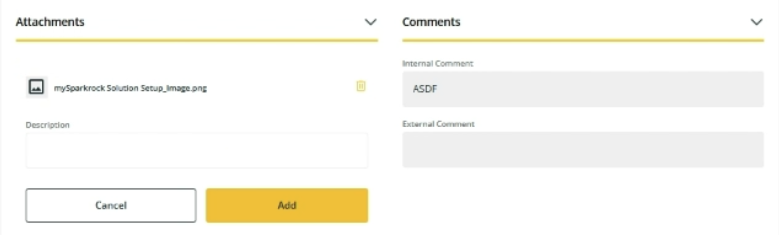
Previously, these sections were collapsed by default, making it difficult to identify whether attachments or comments existed on a document.
When you collapse a section, a count indicator displays the number of items in the section so that you can identify whether attachments or comments exist without expanding the section.

Expense type dialog box details and guidelines
On the Purchase Requisition and Payment Request pages, the Select Expense dialog box now displays Details and Guidelines for each expense type.
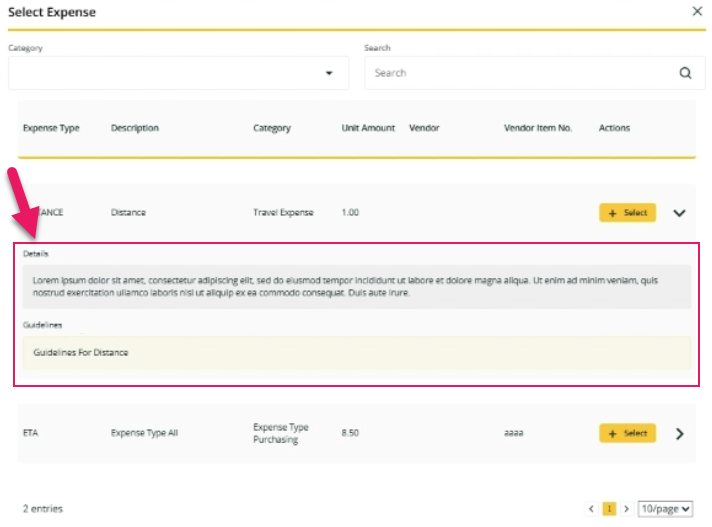
To view these fields, select the chevron on the expense type row. The fields provide additional context to help you select the correct expense type.
Payment request related documents improvements
On the Payment Request page, the Related Documents dialog box now displays only posted purchase invoices.
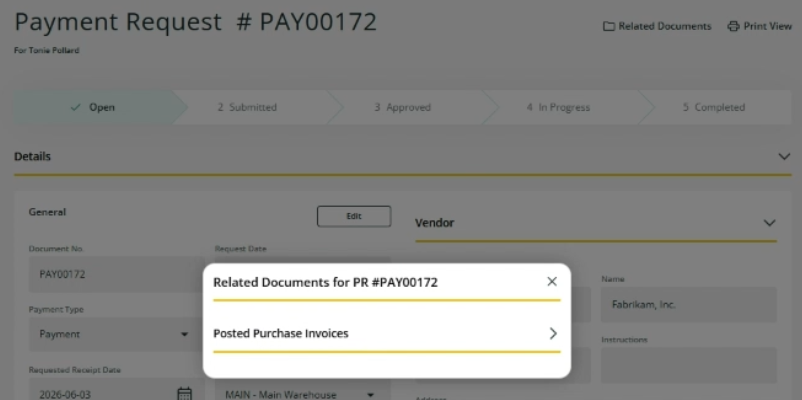
Previously, the dialog box also displayed purchase orders and purchase receipts, which are not relevant to payment requests.
Purchase invoice related documents
On the Purchase Invoices detail page, a new Related Documents button is available.
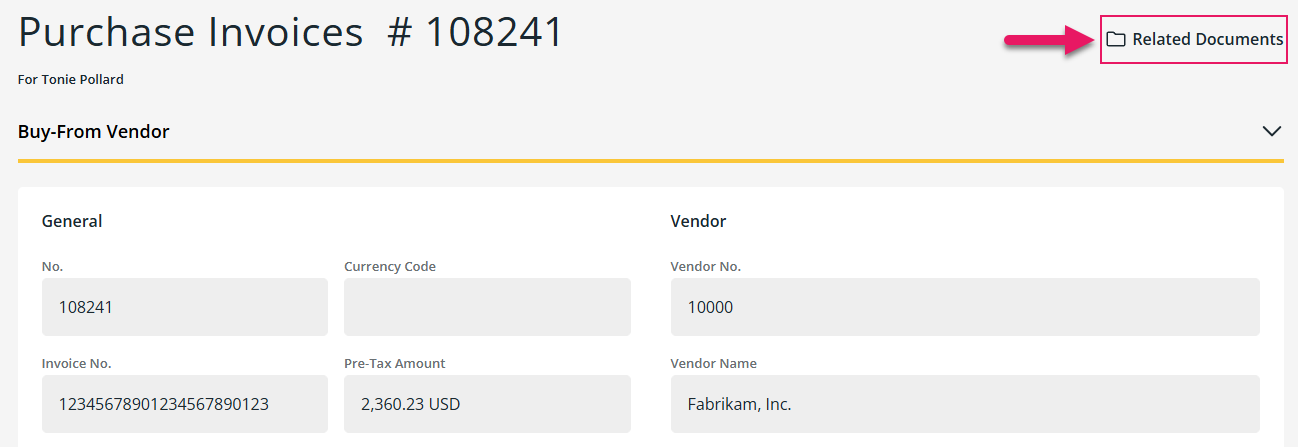
Selecting the button opens the Related Documents for Invoice # dialog box, which displays the purchase orders and purchase requisitions or payment requests that are linked to the invoice.
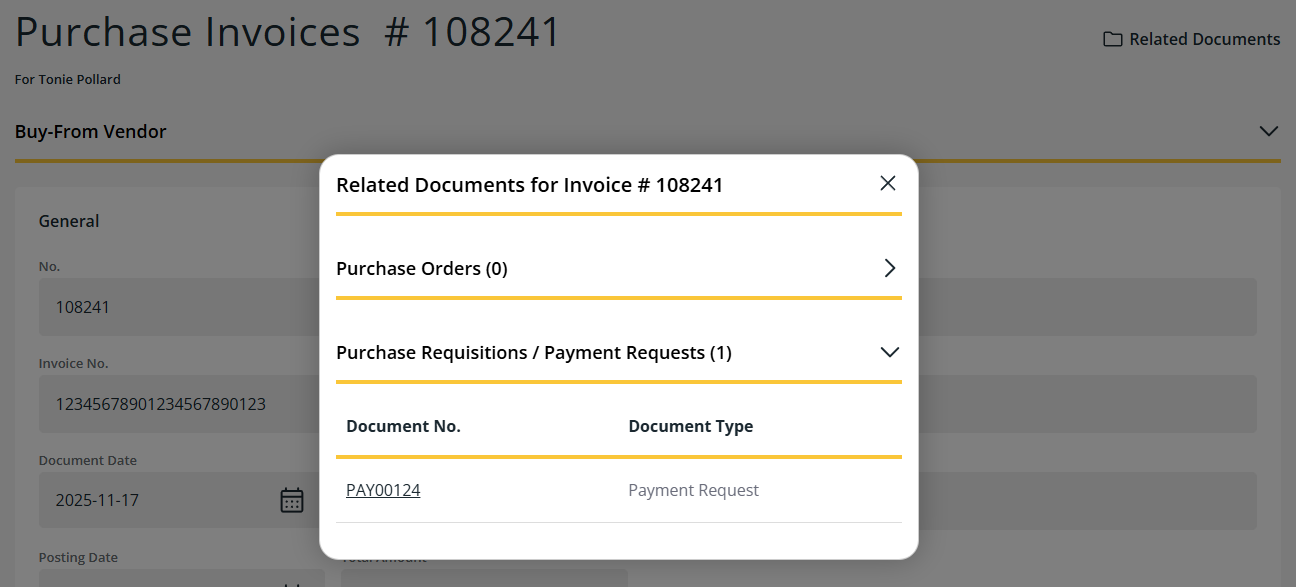
Each document is displayed as a link that opens the related document in a new tab.
Learn more in View related documents for a purchase invoice.
Create a contact from the vendor selection panel
On the Purchase Requisition and Payment Request pages, you can now create a contact directly from the Vendor List dialog box.
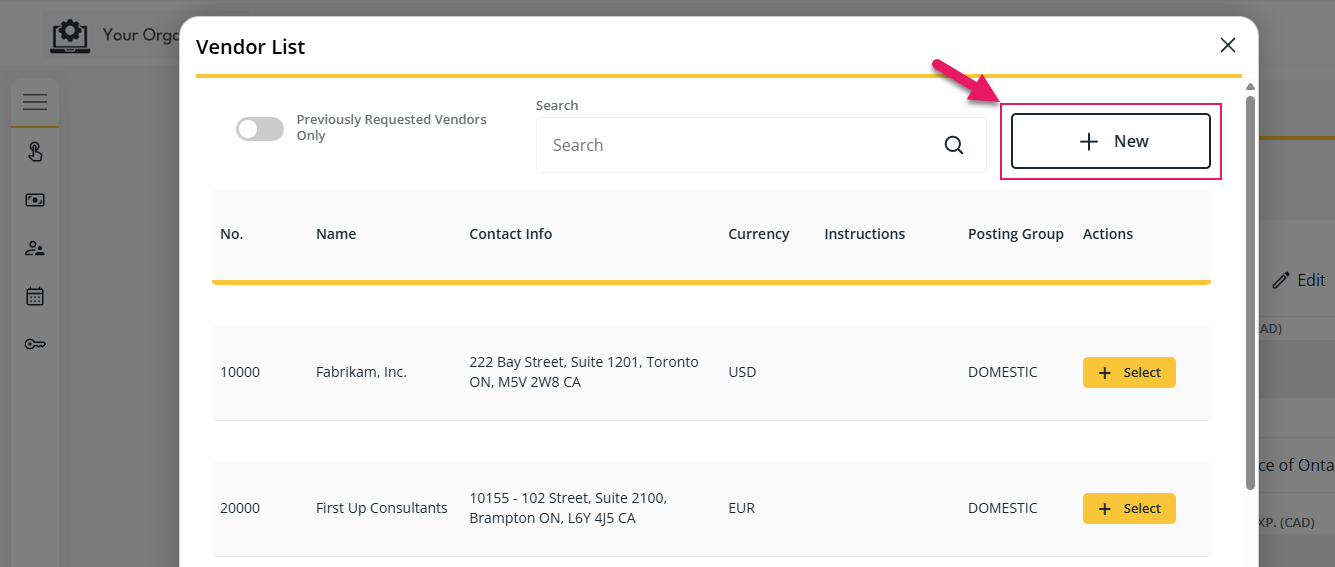
When you select New, the Create New Contact dialog box opens where you can enter the contact details.
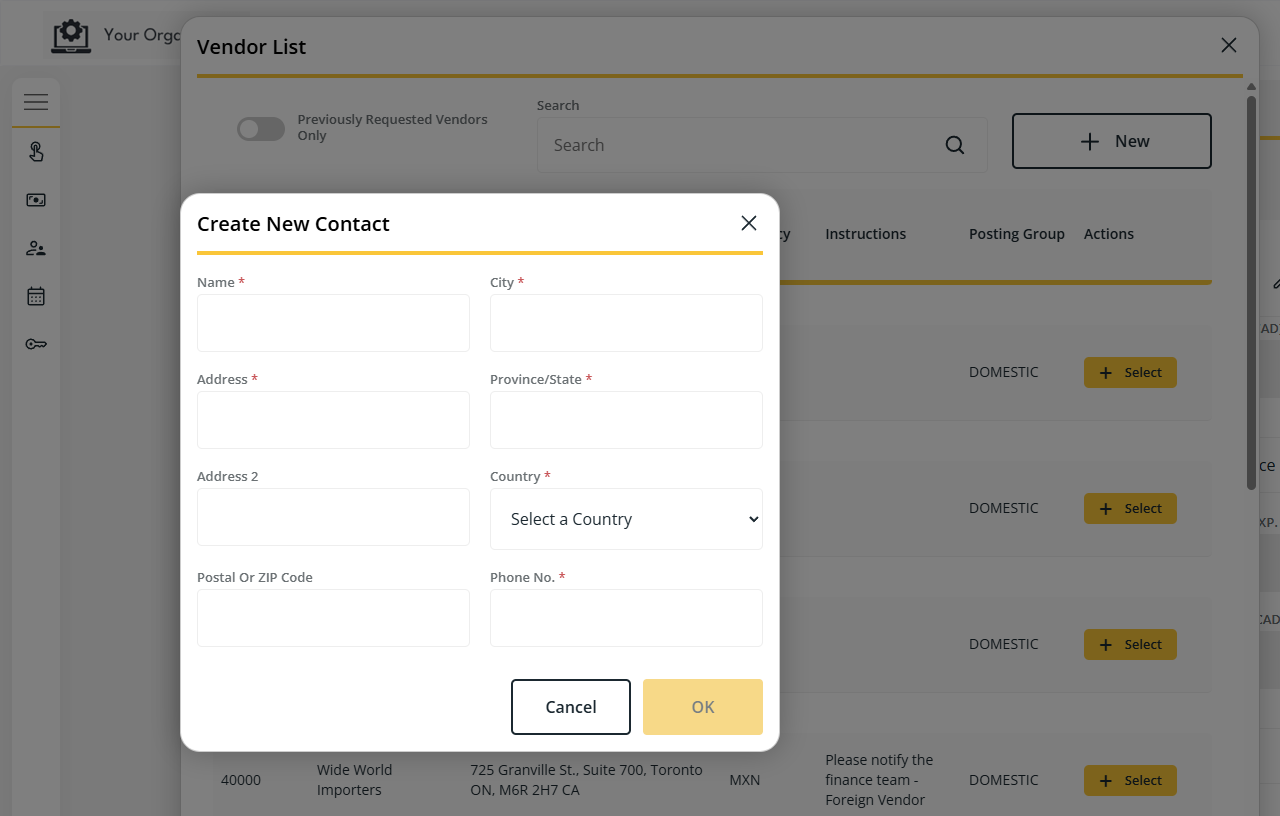
When you select OK, the contact is created and a confirmation message is displayed.
Learn more in:
- Create a contact from a purchase requisition
- Create a contact from a payment request
MSR-1830, MSR-1656
Problem that is resolved in this update
The following problem is resolved in this update.
| Description | |
|---|---|
On an expense claim, the following problems exist in the Approver Selection tab:
|
Related information
Feedback
To send feedback about this page, select the following link: