
Update 28.1.2638.906 Published September 18, 2026
Periodically, Sparkrock may publish updates between releases. This update replaces previously released updates. All updates are cumulative.
Highlights
To view the major accomplishments in this release, select the links:
New features and changes
Update 28.1.2638.906 for mySparkrock 2026 release wave 1 introduces the following new features and changes.
Approved view on the Financial Approvals page
This release adds an Approved view to the Financial Approvals page, so that you can see the financial documents you've personally approved, without needing to open Sparkrock Finance directly.
Switch between Pending and Approved
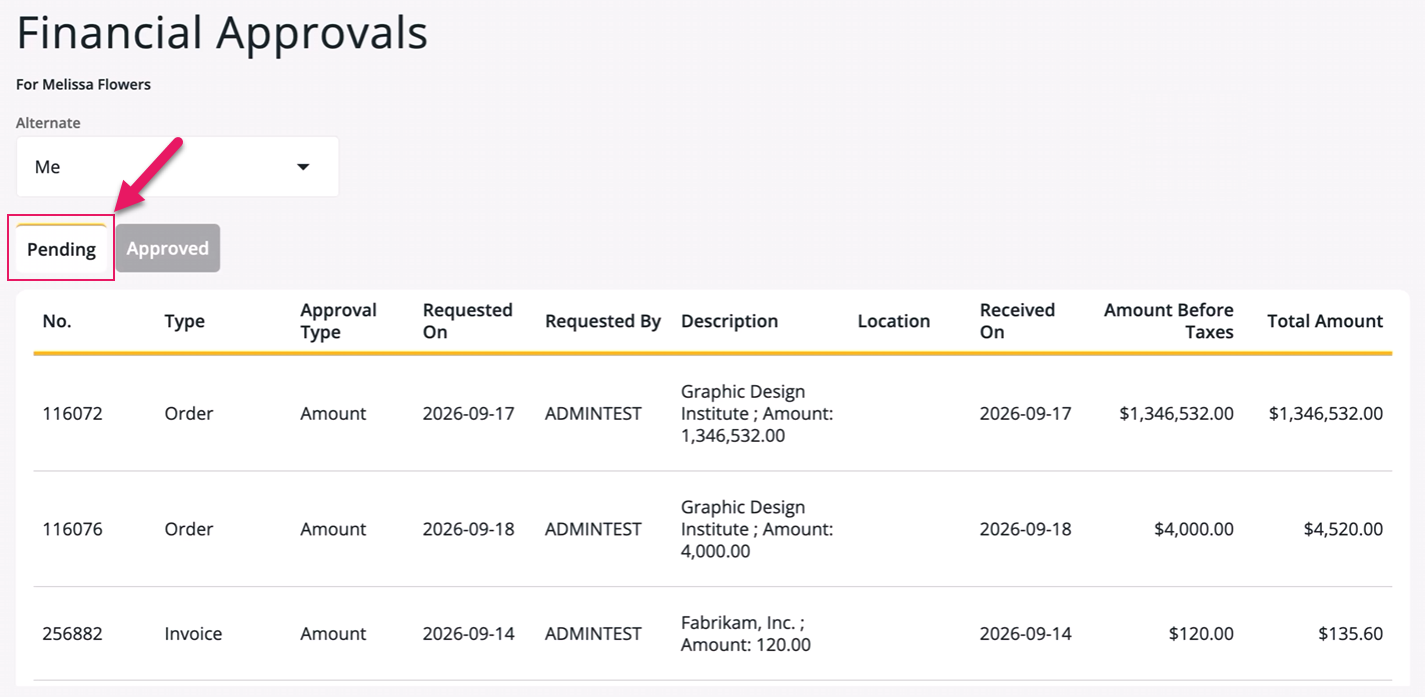
On the Financial Approvals page, you can now switch between the following views:
- Pending
- Approved
Pending is selected by default and works the same as in previous releases, showing the documents that are waiting for your approval.
Approved shows the documents that you have personally approved.
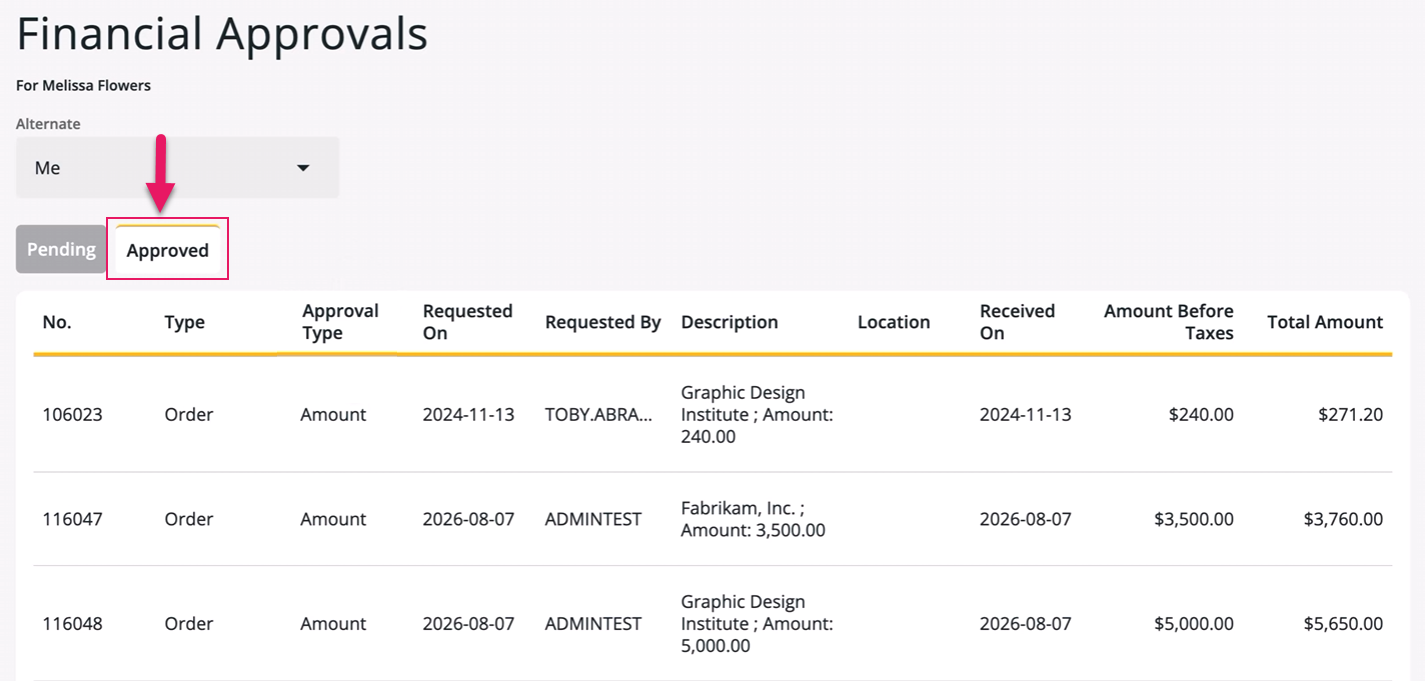
The Approved view has the same columns as the Pending view. If you have not approved any documents, mySparkrock displays You have no approved documents.
The view returns to Pending every time you navigate away from the Financial Approvals page, and then return.
What appears in the Approved view
The Approved view shows a document as soon as you have approved the document, even if the document is still waiting for other approvers to sign off. The Approved view also includes documents that have been fully approved by everyone in the approval chain. The Approved view only shows documents that you have personally approved. A document approved only by another approver is not included.
Select a document in the Approved view to see its details. Approve and reject controls are not available from the Approved view.
Alternate approvers
When you switch to the Approved view, the Alternate field is disabled and set to Me, since the Approved view only shows your own approved documents. Switching back to the Pending view restores your previously selected alternate.
Learn more
- View financial approvals
MSR-2048, MSR-2049, MSR-2050
Dual currency display on purchase order and purchase invoice lines
This release extends the dual currency display already available on purchase order and purchase invoice headers to line items, and to the Payment Information section of a purchase invoice, so that you can see the foreign currency amount and local currency equivalent for individual lines and payment totals, not just the document total.
Purchase order lines
On the Purchase Order page, on the Purchase Order Lines tab for a foreign currency purchase order, the following line fields now show both the amount in the purchase order's currency and the local currency equivalent, each labeled with its currency code:
- Remaining Amount, Excl. Tax
- Direct Unit Cost
- Amount (Excl. Tax)
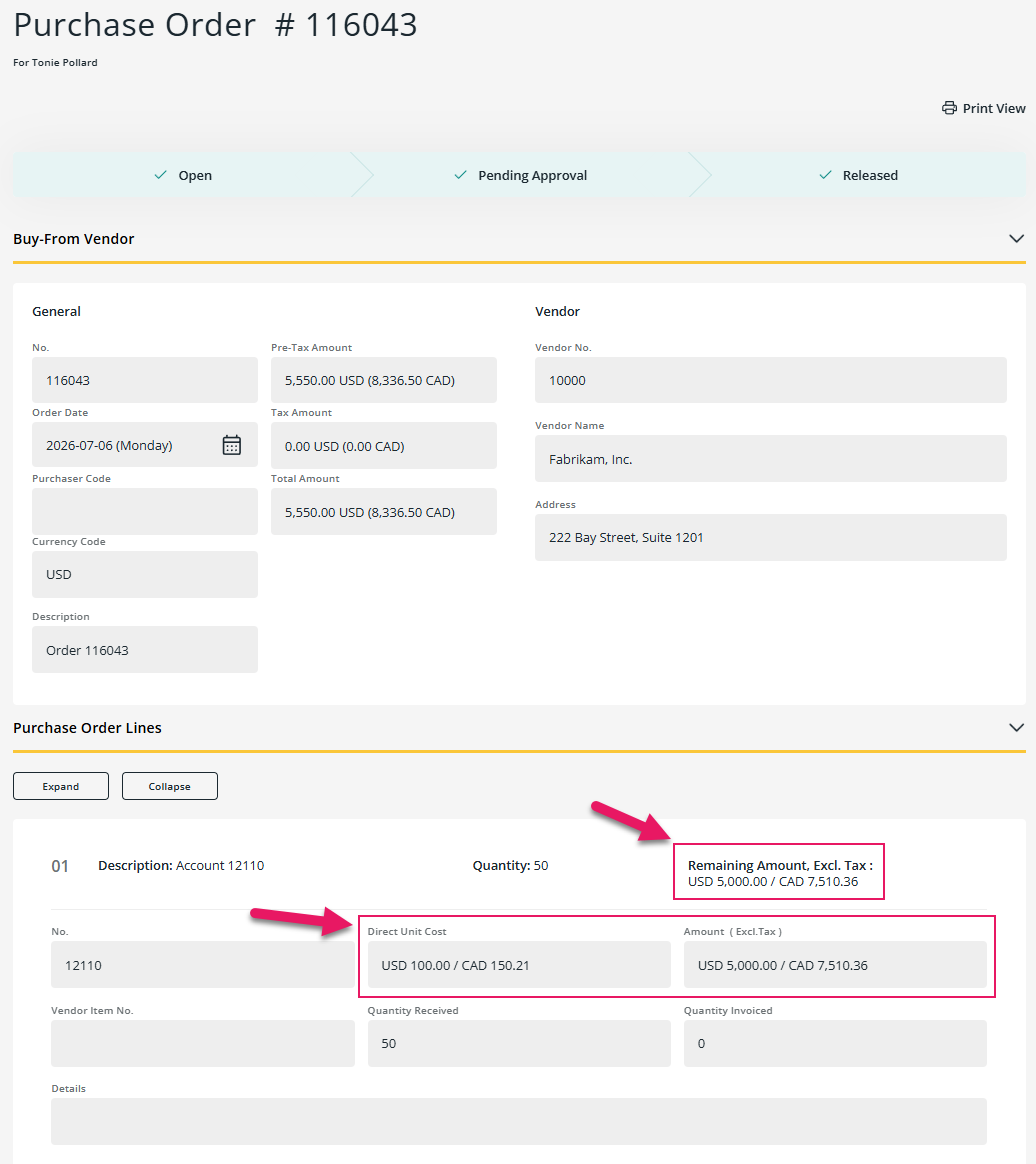
When you view a purchase order in your local currency, these fields display a single amount, labeled with your local currency code.
Purchase invoice lines
On the Purchase Invoices page, on the Purchase Invoice Lines tab for a foreign currency purchase invoice, the following line fields now show both currencies:
- Direct Unit Cost
- Amount (Excl. Tax)
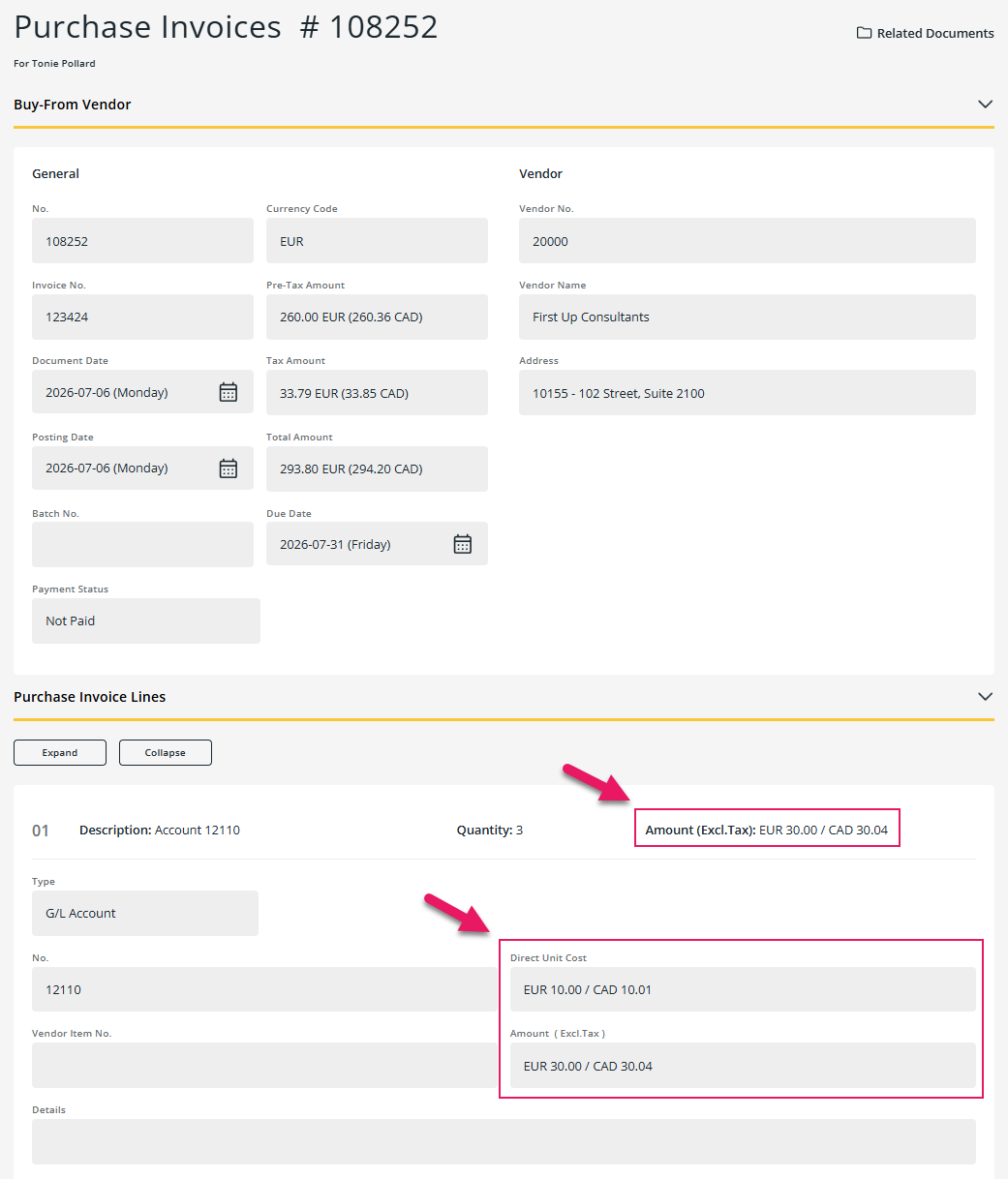
When you view a purchase invoice in your local currency, these fields display a single amount, labeled with your local currency code.
Purchase invoice payment information
On the Purchase Invoices page, on the Payment Information tab for a foreign currency purchase invoice, the Pre-Tax Amount, Tax Amount, and Total Amount fields now show both currencies.
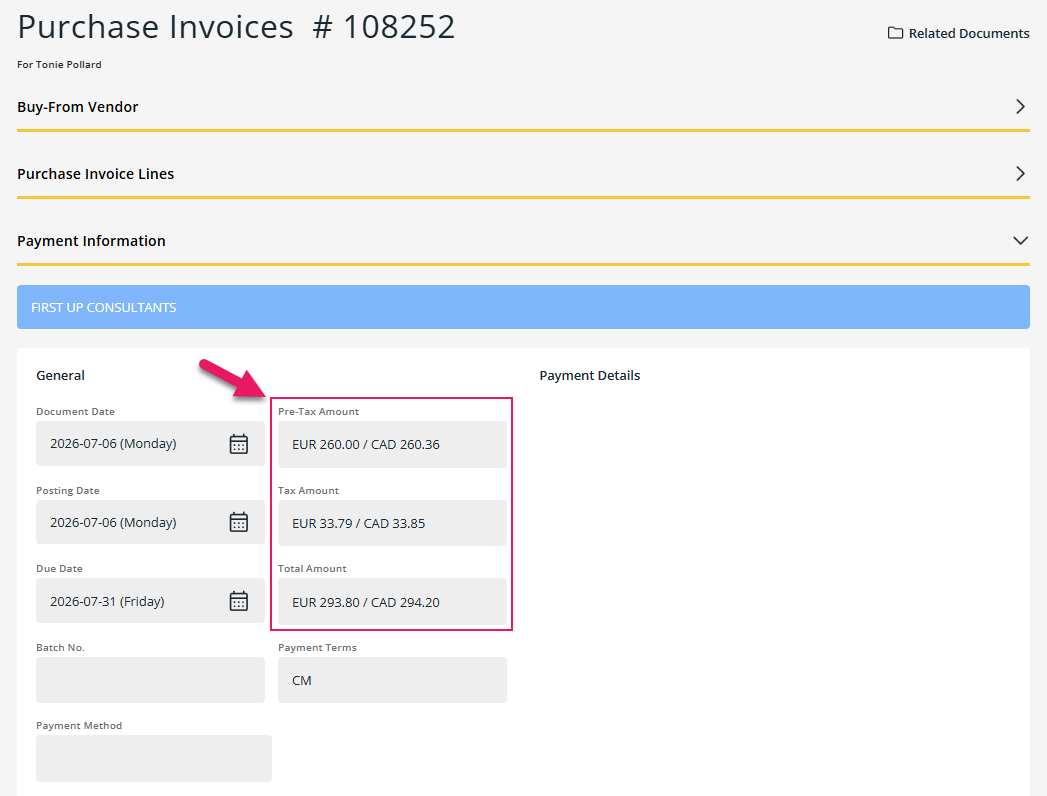
When you view a purchase invoice in your local currency, these fields display a single amount, labeled with your local currency code.
Over-budget approval clarity
This release adds several improvements to help you identify over-budget approvals throughout the financial approvals workflow, so that you know before you approve whether your approval covers an over-budget situation.
Approval Type column on the Financial Approvals list
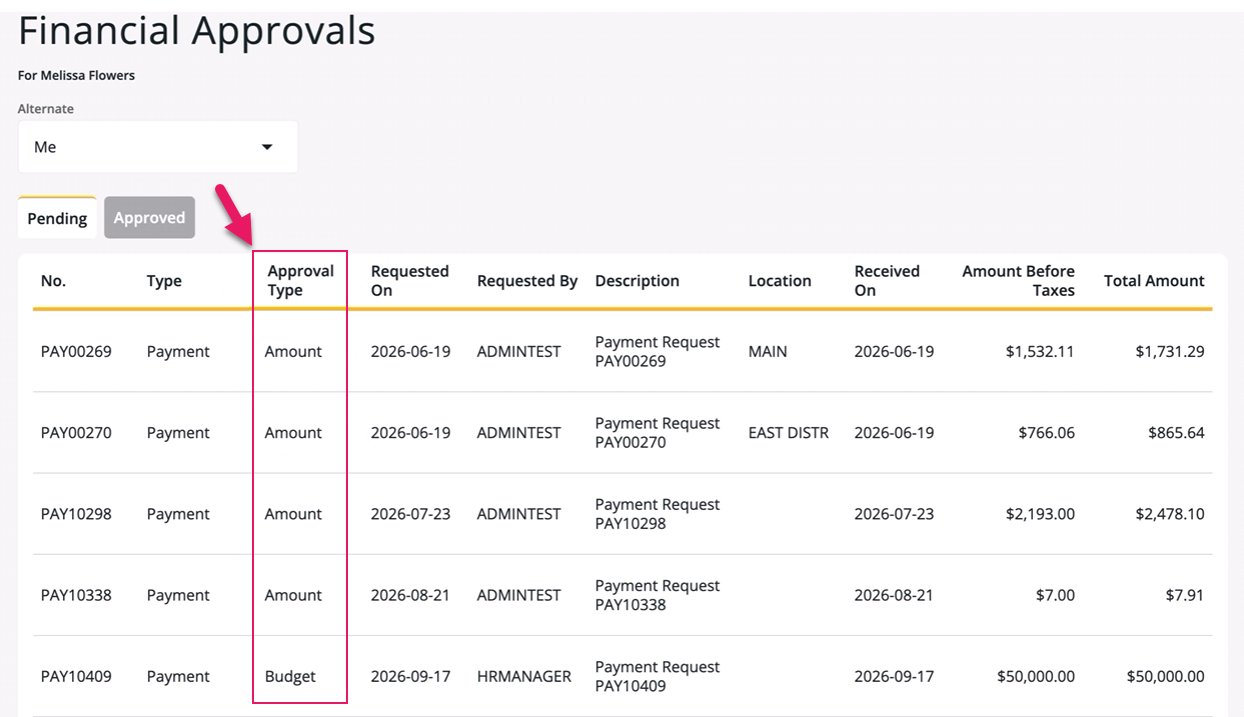
On the Financial Approvals page, an Approval Type column now shows whether each pending approval is an amount-threshold approval or an over-budget approval. The column displays Amount or Budget, depending on the approval.
Approval type badge on document headers
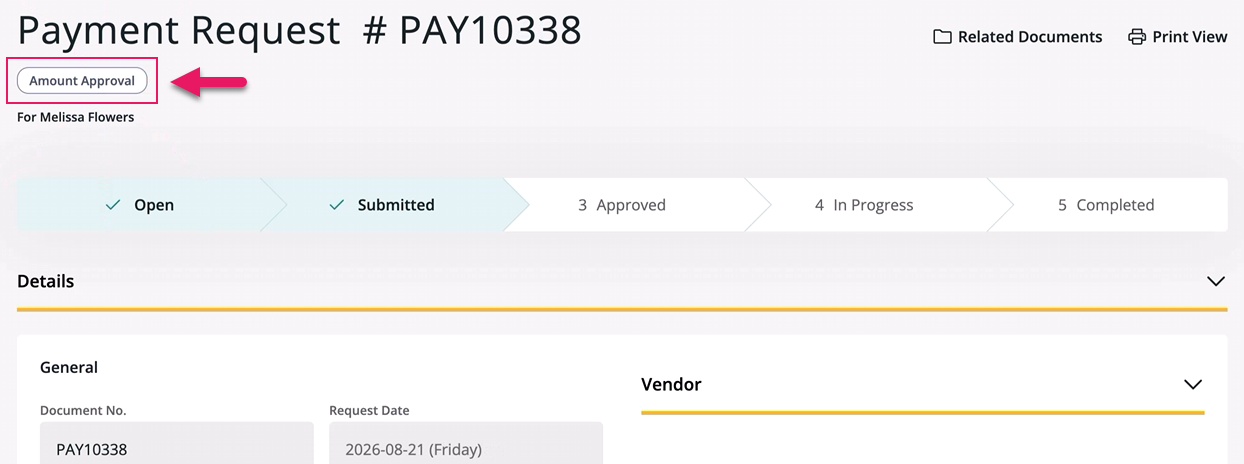
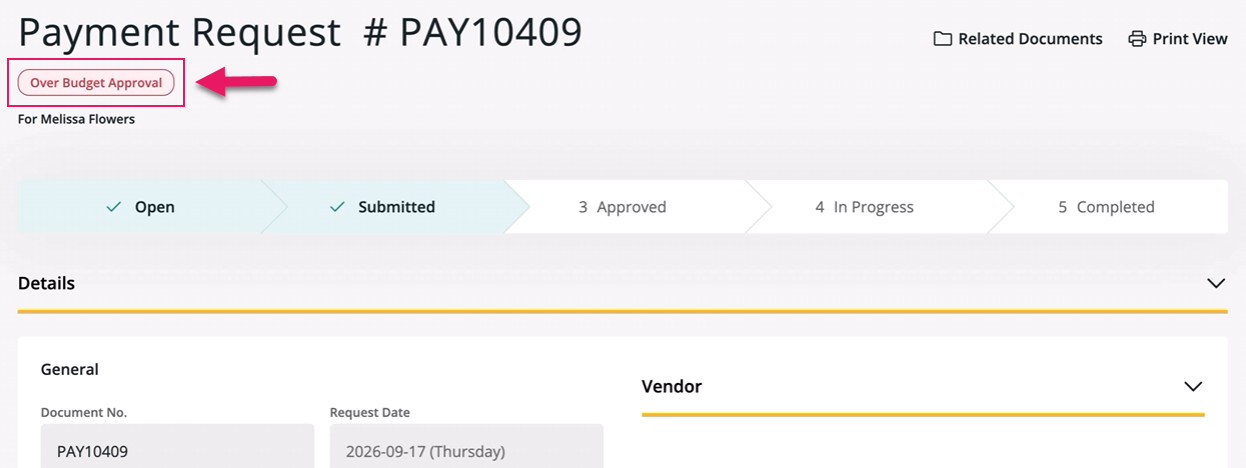
When you open a document from the Financial Approvals page, a badge directly under the document title now shows the approval type, Amount Approval or Over Budget Approval, based on your own approval entry for that document.
Budget tab auto-expands when over budget
On a payment request, purchase requisition, or expense claim that is over budget, the Budget tab now automatically expands when you open the document from the Financial Approvals page, and an alert banner appears in the Budget tab.
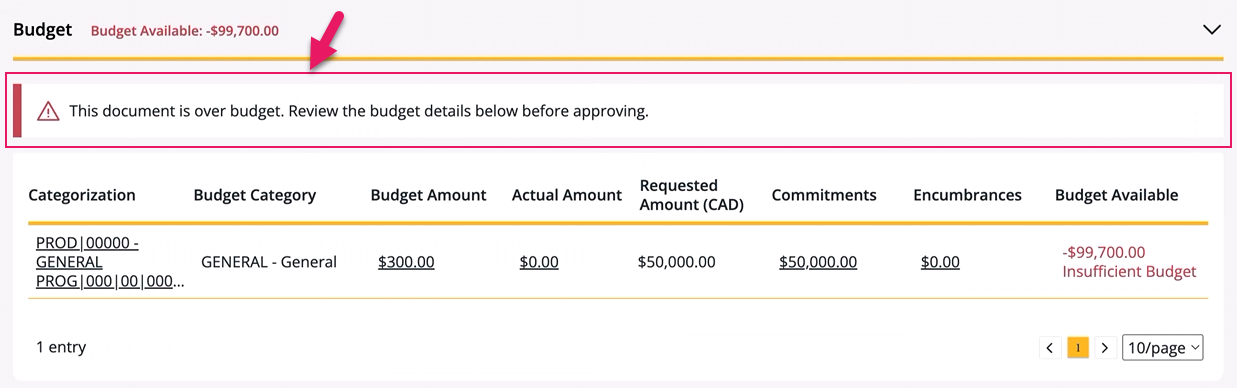
This automatic expansion applies only when the Enable Budget Checking checkbox is selected for the document type on the Budget Checking Setup page in Sparkrock Finance. Learn more in Set up budget checking. When the document is not over budget, the Budget tab stays collapsed.
Over-budget warning before you approve
When you select Approve on a document where you are the over-budget approver, before mySparkrock displays the standard approval confirmation, a dialog box now appears that displays a warning message so that you can confirm you intend to approve an over-budget situation.
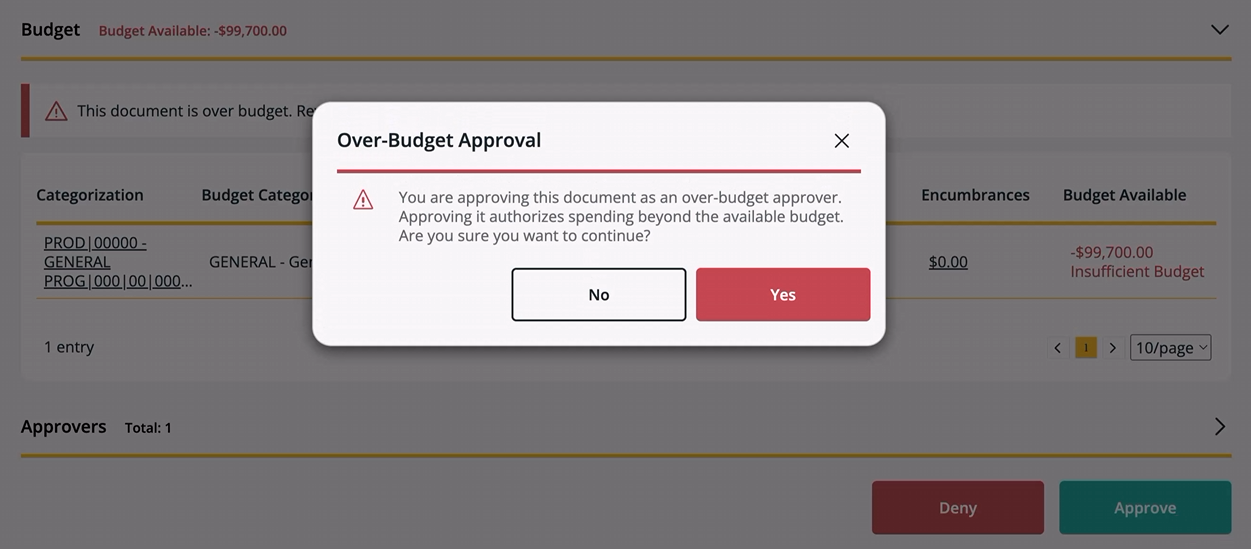
If you cancel either the warning or the standard confirmation, the approval is not submitted, and the document remains unchanged. This warning applies to payment requests, purchase requisitions, purchase orders, purchase invoices, and expense claims.
Learn more
- View financial approvals
- Approve or deny a financial approval request
MSR-1987, MSR-1988, MSR-1989, MSR-1990, MSR-1991, MSR-1992, MSR-1993, MSR-1994, MSR-1995, MSR-1996, MSR-1997, MSR-1998, MSR-1999, MSR-2000, MSR-2001
Problems that are resolved in this update
The following problems are resolved in this update.
| Description | |
|---|---|
| On the Payment Request page, when you create a request as an alternate, the Account Set lookup may display account sets that are not configured for the user you are an alternate for. |
|
| On the Financial Analysis page, when you export to Excel, the Budget Available and Percent Available columns are blank on the Total row. To resolve this problem, mySparkrock now includes these totals in the Excel export. |
|
| On the Purchase Orders and Receiving page, the No. column truncates long numbers. To resolve this problem, the No. column now wraps a long number onto a second line instead of truncating the number. |
Related information
Feedback
To send feedback about this page, select the following link: