
Update 28.1.2635.845 Published August 31, 2026
Periodically, Sparkrock may publish updates between releases. This update replaces previously released updates. All updates are cumulative.
Highlights
To view the major accomplishments in this release, select the links:
Copy, save as template, and copy from template for purchase requisitions and payment requests
Attachments redesign for purchase requisitions and payment requests
Improved vendor change confirmation message for purchase requisitions and payment requests
New features and changes
Update 28.1.2635.845 for mySparkrock 2026 release wave 1 introduces the following new features and changes.
Copy, save as template, and copy from template for purchase requisitions and payment requests
This release introduces the following copy and template capabilities for purchase requisitions and payment requests, so that you do not need to re-enter recurring information every time you create a similar document:
Copy from an existing document
On the Purchase Requisitions or Payment Requests page, in the action menu at the end of a row there is a new Copy action.
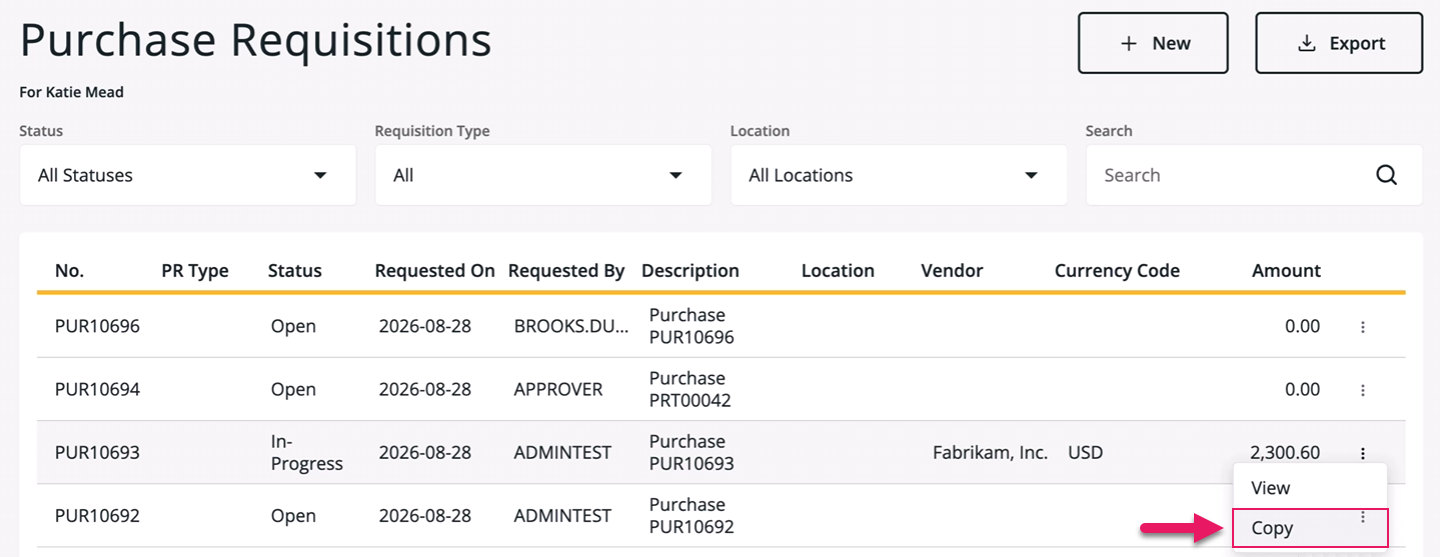
On mobile devices, Copy appears as a button.
When you select Copy, mySparkrock creates a document and automatically populates the vendor, location, shipment method, shipping reference, comments, and lines from the source document. On a purchase requisition, mySparkrock also populates the Requisition Type value. On a payment request, mySparkrock also populates the Payment Type value.
mySparkrock does not copy any attachments from the source document.
The document number of the new document comes from the number series, and the status of the new document is Open.
The Requested Receipt Date and Posting Date values on the new document are set to the current date, rather than the dates on the source document.
Budget checking is not automatically run on a copied document. You must select Verify on the new document to run budget checking.
Save as template
On the Purchase Requisition or Payment Request pages for documents with a Status of Open and that have at least one line, you can now select Save As Template.
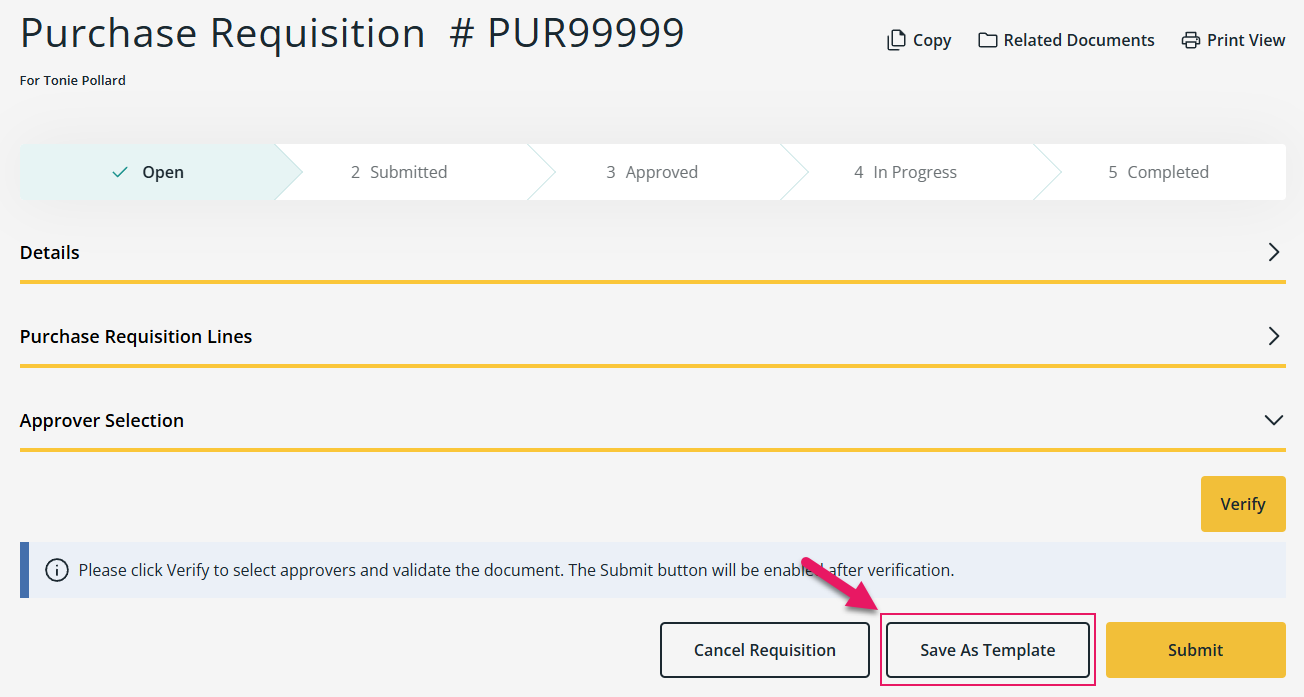
When you select Save As Template, mySparkrock opens a Save As Template dialog box.
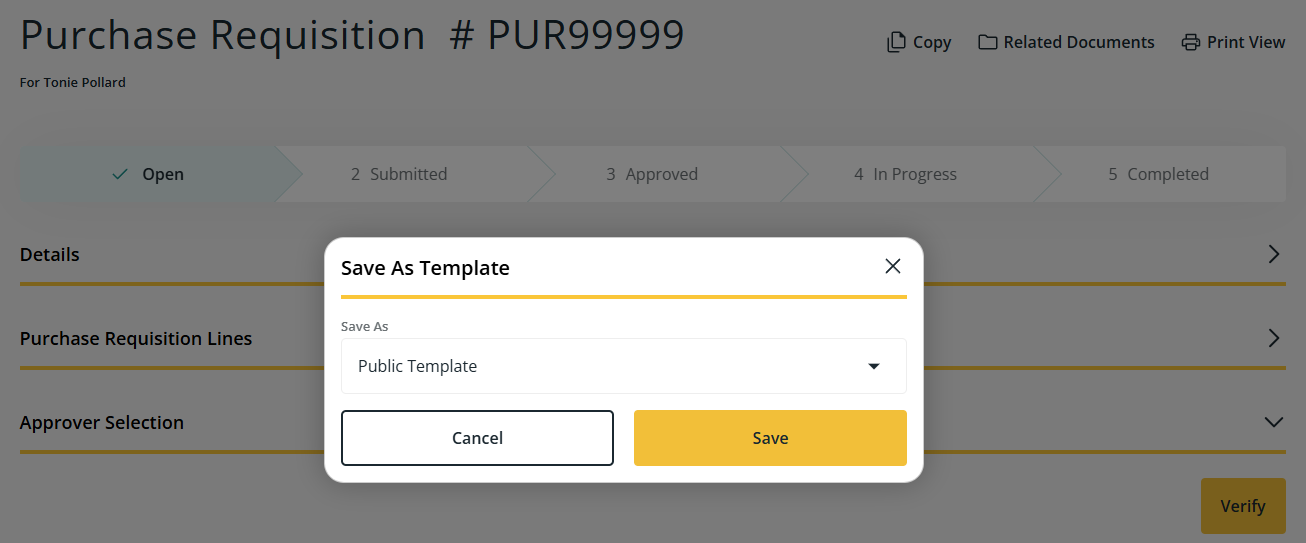
In the Save As Template dialog box, in Save As, select Public Template or Private Template, and then select Save.
A public template is available to anyone who has access to the document type, and a private template is available only to the person who created the template.
After you save, the document that you started from is not changed and stays in edit mode.
Copy from Template
On the Purchase Requisition or Payment Request pages for documents with a Status of Open, you can now select Copy to create a document from a template.
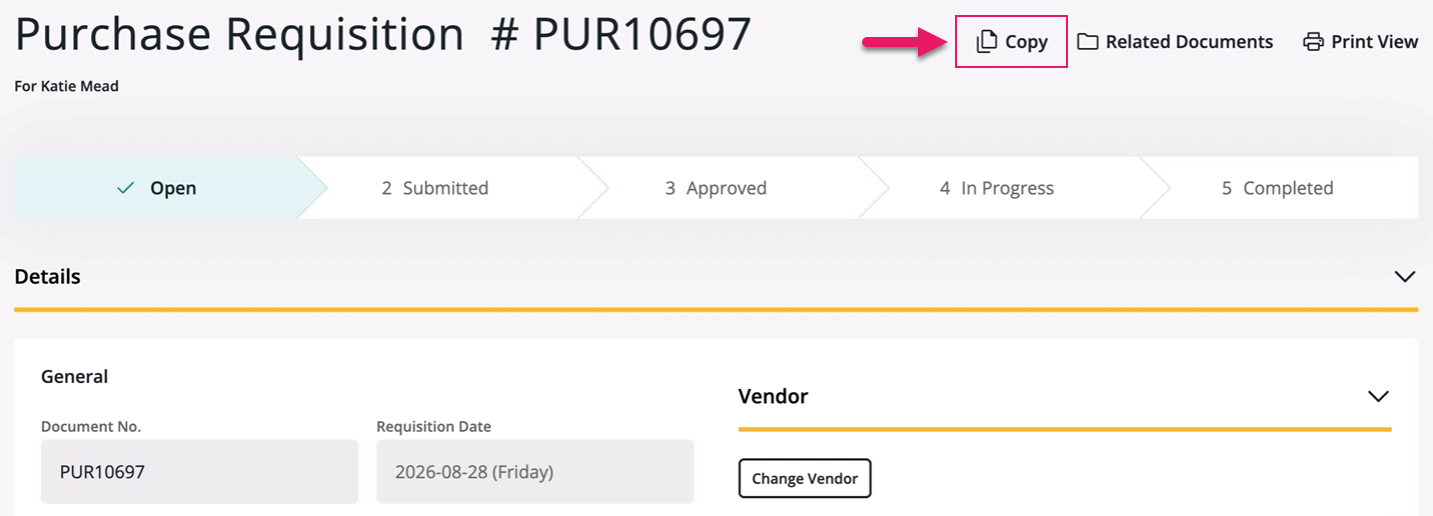
When you select Copy, mySparkrock opens the Copy from Template dialog box.
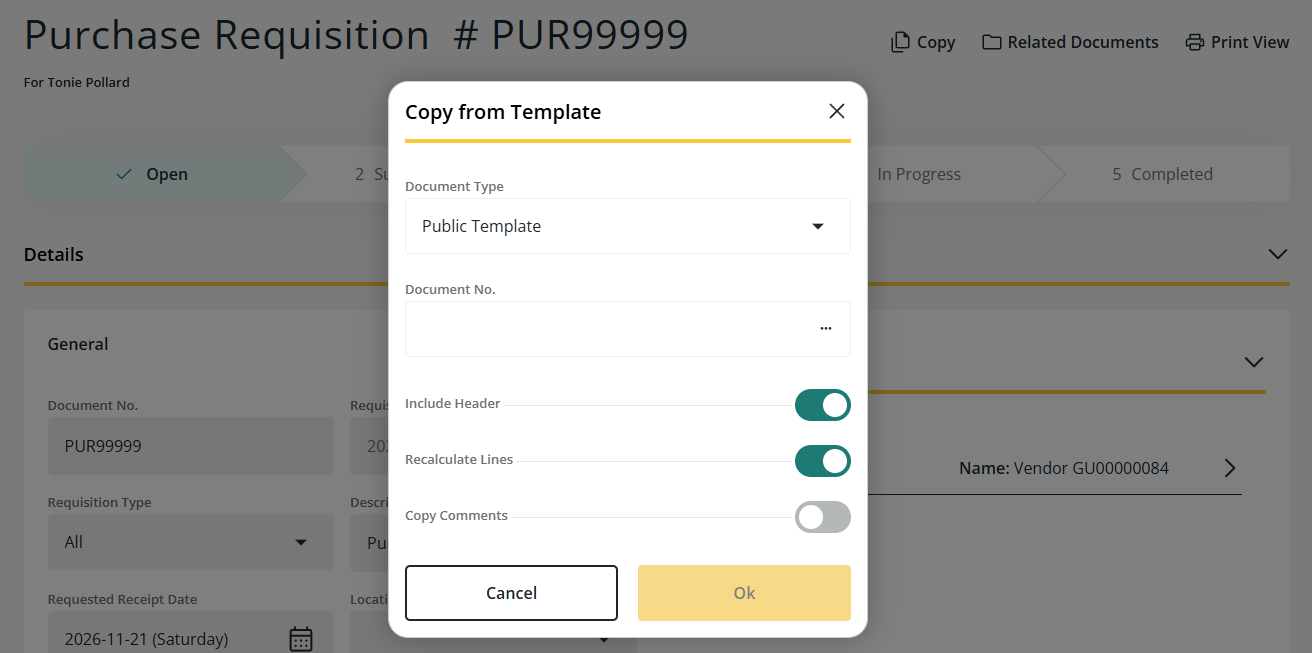
In the Copy from Template dialog box, select and confirm options for the following fields:
- Document Type: Select Public Template or Private Template.
- Document No.: Use the lookup to choose a template from the list of available templates for the document type that you selected.
- Include Header: When turned on, the general fields on the document are automatically populated from the template on the General tab. When turned off, the general fields are not populated, and you enter them manually. Include Header is turned on by default.
- Recalculate Lines: When turned on, the unit amount on each line that is copied is automatically populated based on the item's own defaults, rather than the amount that is stored on the template. When turned off, the unit amount on each copied line matches the amount that is stored on the template. Recalculate Lines is turned on by default.
- Copy Comments: When turned on, the Internal Comment and External Comment values from the template are automatically populated. When turned off, the Internal Comment and External Comment fields stay blank. Copy Comments is turned off by default.
After you select Ok, the copied fields are editable.
Budget checking is not automatically run on a template-populated document. You must select Verify on the new document to run budget checking.
Learn more
- Copy a purchase requisition
- Copy purchase requisition details from a template
- Save a purchase requisition as a template
- Copy a payment request
- Copy payment request details from a template
- Save a payment request as a template
MSR-1150, MSR-1151, MSR-1152, MSR-1431, MSR-1432, MSR-1433, MSR-1435, MSR-1436, MSR-1701, MSR-1702
Open a purchase receipt by selecting its row
On the Purchase Order page, in the Receiving section on the Shipping and Receiving tab, you can now select anywhere on a receipt row to open the Receipt page.
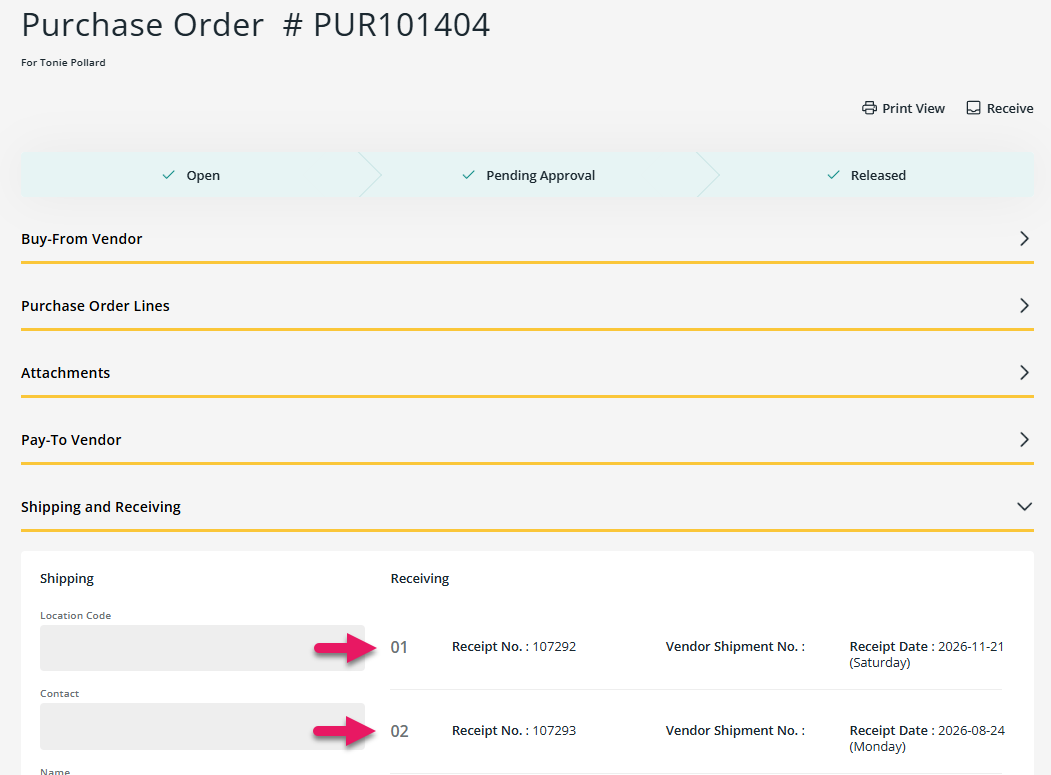
Previously, you had to select the receipt number specifically. The receipt number is now plain text rather than a hyperlink.
On mobile devices, each receipt appears as a card that you can select anywhere on to open the Receipt page.
Learn more
- View a posted purchase receipt
MSR-1232
Options dialog box redesign for payment requests
On a payment request line, the Options dialog box that opens when you select the Options field has a refreshed design.
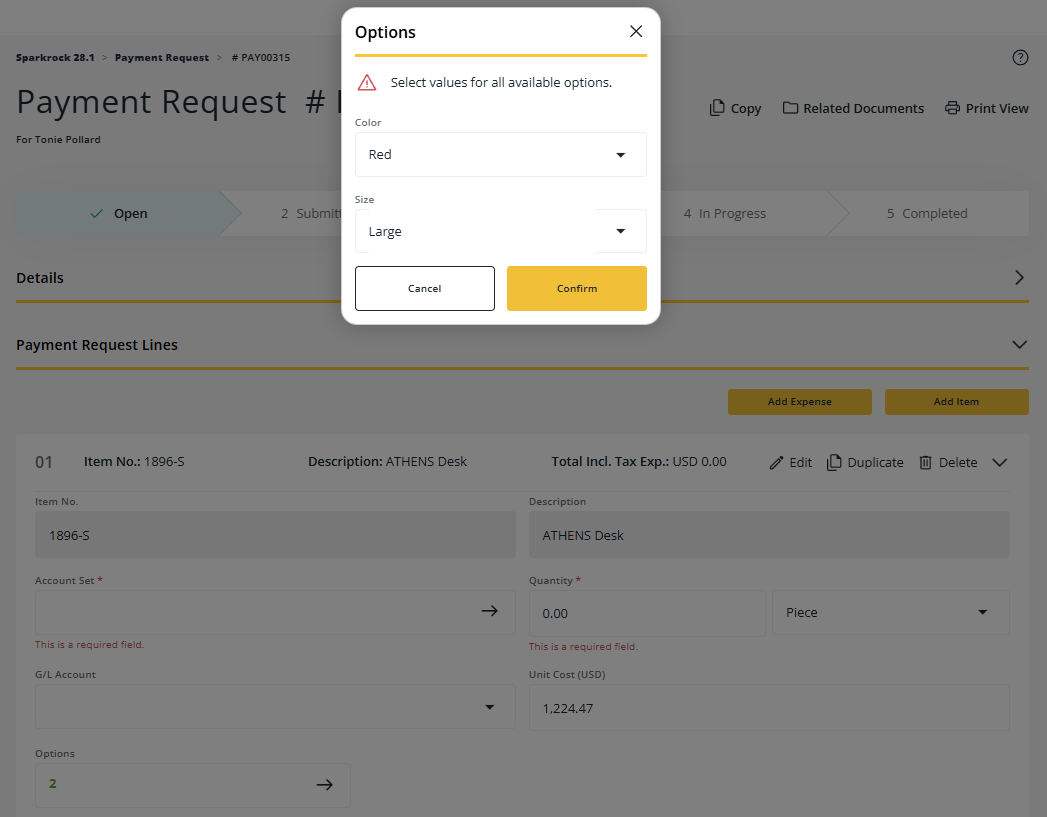
The dialog box title changed from Select Option Values to Options, and each option now appears as a collapsed dropdown list field.
Attachments redesign for purchase requisitions and payment requests
The Attachments tab on the Purchase Requisition and Payment Request pages, and on their related approval pages, has a refreshed design.
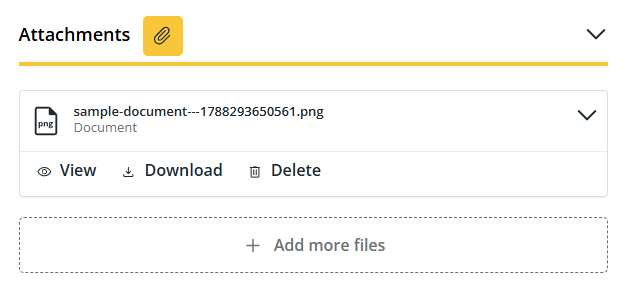
The refreshed design applies to adding, viewing, downloading, and deleting attachments.
Learn more
- Manage attachments on a purchase requisition
- Manage attachments on a payment request
MSR-228, MSR-229
Print a purchase order
On the Purchase Order page, you can now select Print View to open a print preview of the purchase order.
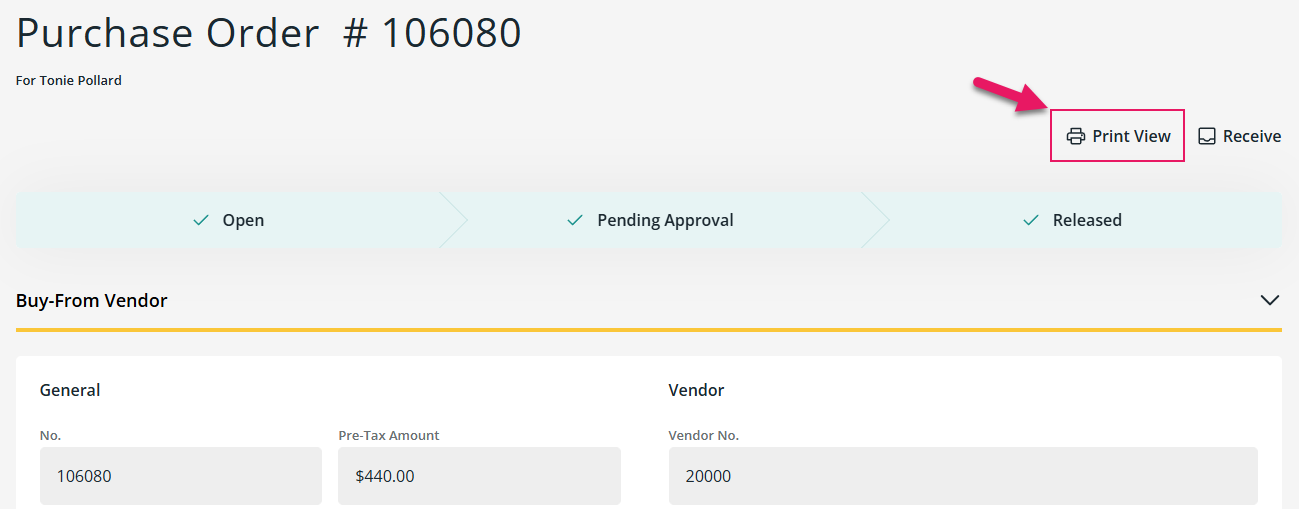
The Print View dialog box displays your organization's logo, a Purchase Order # header with the purchase order number and date, and for each line, the description and details text. The Item No. column displays the vendor item number, or the item number if a vendor item number is not available.
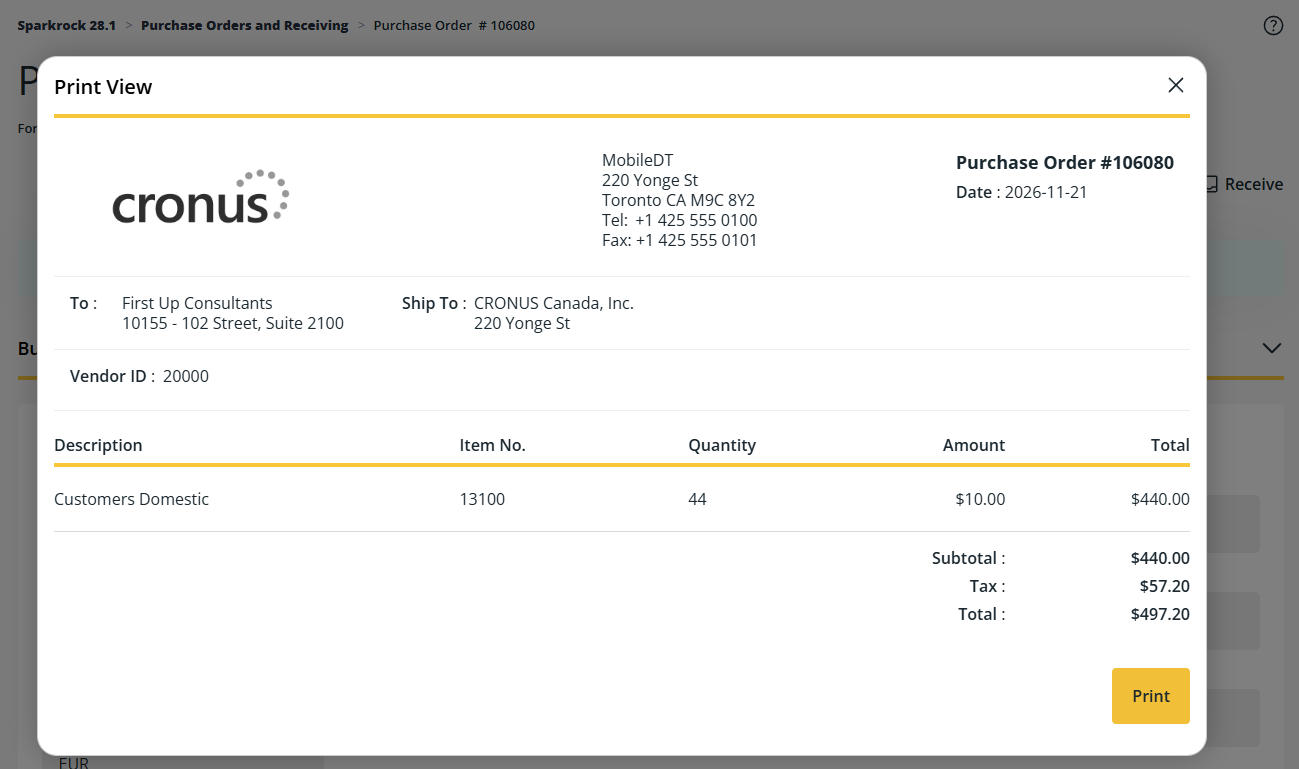
From the Print View dialog box, select Print, and then use your browser's print dialog to print the purchase order or save the document as a PDF.
Learn more
- Print a purchase order
MSR-221
Improved vendor change confirmation message for purchase requisitions and payment requests
When you change the vendor on a purchase requisition or payment request that has existing lines, the confirmation dialog box now displays the following message:
If you change the vendor number, the existing lines will be deleted, and lines will be created that are based on the information in the General section. Do you want to continue?
Learn more
- Change a vendor on a purchase requisition
- Create a contact from a purchase requisition
- Change a vendor on a payment request
- Create a contact from a payment request
MSR-73
Problems that are resolved in this update
The following problems are resolved in this update.
| Description | |
|---|---|
| On the Approve Shifts Worked page, mySparkrock may display an error or become unresponsive after you approve or edit several shifts. Refreshing the page does not resolve this problem, and you must sign out and sign back in to continue. |
|
| On the Unit Schedule page, schedule units with a high volume of shifts may take an excessive time to load. |
|
| During purchase order and receiving processing, when a receipt fails to post, mySparkrock displays the following error message: Failed to post receipt. This message does not include the specific reason for the failure, for example that a vendor is blocked or restricted by a vendor approval workflow. To resolve this problem, mySparkrock now includes the specific reason in the error message. |
|
| On the Expenses and Claims page, mySparkrock displays unnecessary text above the Alternate dropdown list. To resolve this problem, mySparkrock no longer displays this text. |
|
| The Purchase Requisitions, Purchase Invoices, Payment Requests, and Purchase Orders and Receiving pages may take an excessive time to load or not load at all due to the Sparkrock Finance API not sharing row count data with mySparkrock quickly enough. |
Related information
Feedback
To send feedback about this page, select the following link: